Here's the short version. Install a Solana wallet, write down its recovery phrase on paper, buy a small amount of USDC inside the wallet, then swap that USDC for $ARMORED on Jupiter. Before you swap, check that the token's mint address is exactly the one below:
Official $ARMORED mint: `Bq4iwaa2hGWweyCeM9ZNyWnZSj6pCMeUDKZgmtb5pump`
Part 1: Set up your wallet
A wallet is an app that holds the keys to your tokens. This guide uses Jupiter Mobile, because it can buy USDC and swap tokens in one place. Phantom and Solflare work too. See the intermediate guide.
Create a Jupiter Mobile wallet
- Install the official app.
Open jup.ag/mobile and follow its App Store or Google Play link. Don't install from search ads, because fake wallet apps exist.
- Create a wallet.
On first launch, choose to create a new recovery phrase wallet. A Social Login account also exists, but a recovery phrase gives you the most direct control.
- Write down the recovery phrase on paper.
Write the words in order and keep the paper somewhere safe and offline. Jupiter Mobile has no cloud backup. Don't screenshot it, email it or type it into any website.
- Confirm the backup.
If the app asks you to confirm some of the words, do it. You can view the phrase again later from the wallet drawer under Manage Account.
Part 2: Buy USDC with a card
USDC is a stablecoin designed to track the US dollar. Buying USDC first gives you a stable starting balance, so you can take your time before swapping.
Add USDC to your wallet
- Tap Deposit
on the Jupiter Mobile home screen.
- Choose to buy with a card.
The option says Buy with Credit card, Apple Pay & more. The purchase is handled by MoonPay, a third-party payment provider.
- Pick a small amount.
For a first try, choose an amount you'd be fine losing. MoonPay charges a fee that depends on your country and payment method, and it shows you the total before you pay.
- Complete identity verification if asked.
MoonPay may ask for ID. That's normal for card purchases.
- Wait for the USDC to arrive.
It shows up in your Jupiter Mobile balance, usually within minutes.
Part 3: Swap USDC for $ARMORED
Buy $ARMORED on Jupiter
- Open the swap screen
in Jupiter Mobile.
- Set "You pay" to USDC
and type the amount.
- For "You receive", search for the mint address
, not the name. Paste `Bq4iwaa2hGWweyCeM9ZNyWnZSj6pCMeUDKZgmtb5pump`. The token shows as ArmoredKitten (symbol Armored).
- Check that the address matches, character by character.
Look at the first and last six characters (`Bq4iwa…b5pump`). If it doesn't match, stop.
- Expect an "unverified" style warning.
$ARMORED is a new community token and doesn't carry Jupiter's verified badge. That's why you check the mint address yourself.
- Review the quote.
Leave slippage on the automatic setting. Jupiter picks a sensible value, and new tokens with thin liquidity can move between the quote and the fill.
- Swap and approve.
Once it confirms, $ARMORED appears in your token list.
Part 4: Send $ARMORED as a gift
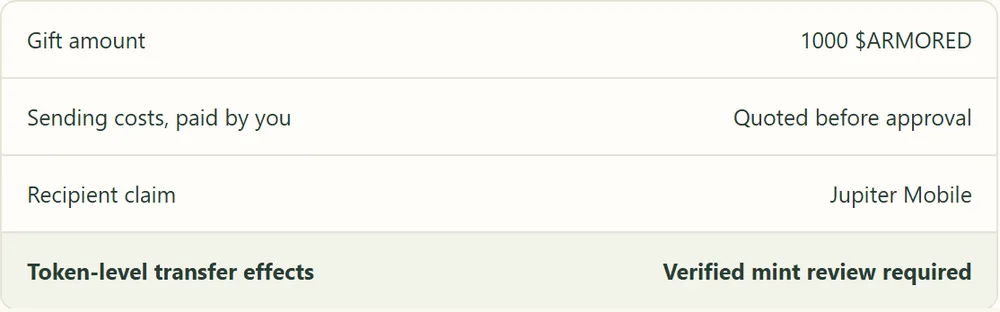
Armored Kitten only gifts $ARMORED. No other token can be attached to a greeting. When gifting is switched on, you write your card, choose Add a $ARMORED gift, connect your wallet and approve the transfer. Your friend gets the greeting and a private claim link. Treat that link like cash: anyone who has it can claim the gift.
New to all of this? Send the greeting on its own. Words are free, and they're usually the part people keep.
Armored Kitten is an independent greeting studio and is not affiliated with or endorsed by Jupiter. Token gifts are optional, can change in value, and are not investment advice. Check the rules that apply where you live.