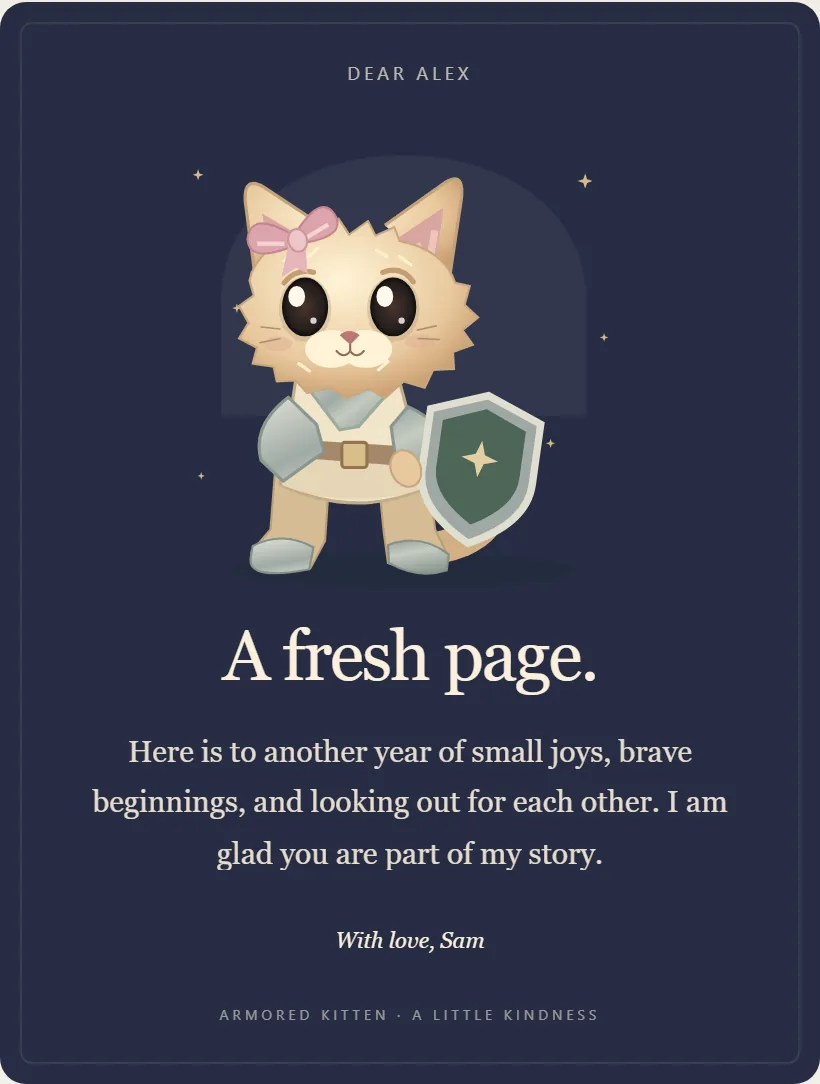
Armored Kitten turns a few honest words into a small illustrated greeting that opens like a letter. You pick a design, write your message in four short steps, and send it by email or as a private link. Cards are free to make and you never need a crypto wallet for them. This tutorial walks through every screen, in the order you will meet it.
Before you start
You need a browser and, to send, an email address you can receive a code at. There are no passwords for senders. The site works on phones and computers, and the menu is available in 19 languages; the language switcher sits in the top bar.
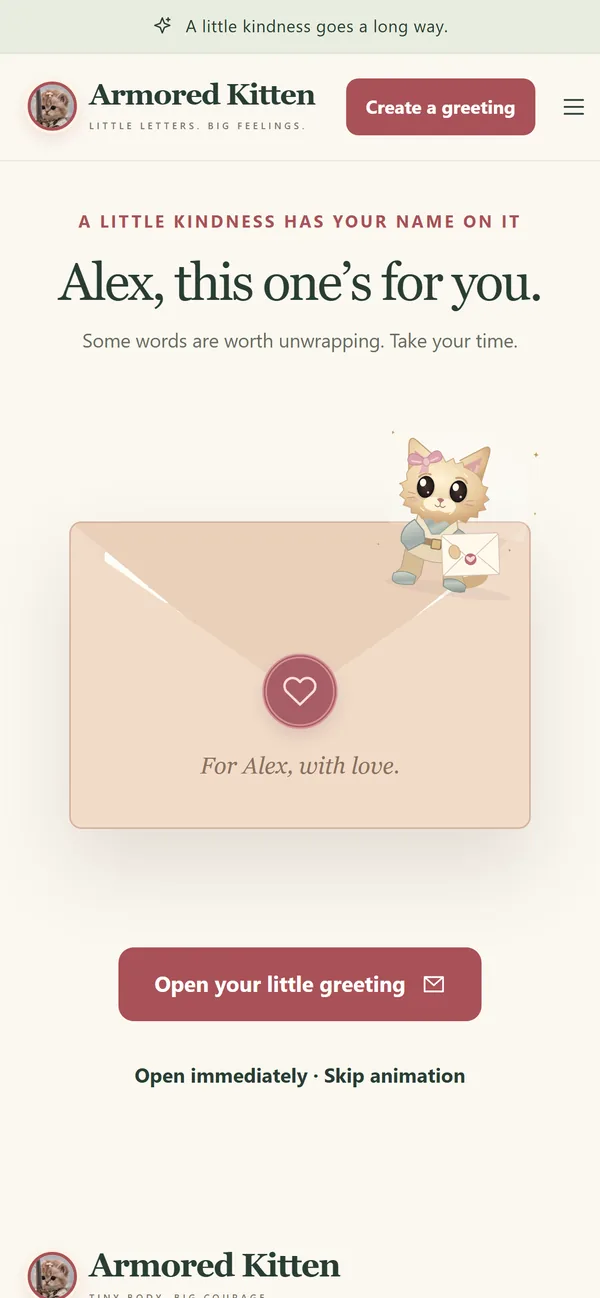
Want to see what a recipient gets first? On the homepage, choose Open a little kindness to open a fictional sample greeting.
Choose a design
Choose Create a greeting or All occasions to open the greeting library. Filter by occasion (birthday, thank you, get-well and 13 more) and by style: Storybook, Moonlight or Little postcard. Type in the search box, or press / to jump straight to it. Anywhere on the site, Ctrl K opens a quick search for occasions and designs.
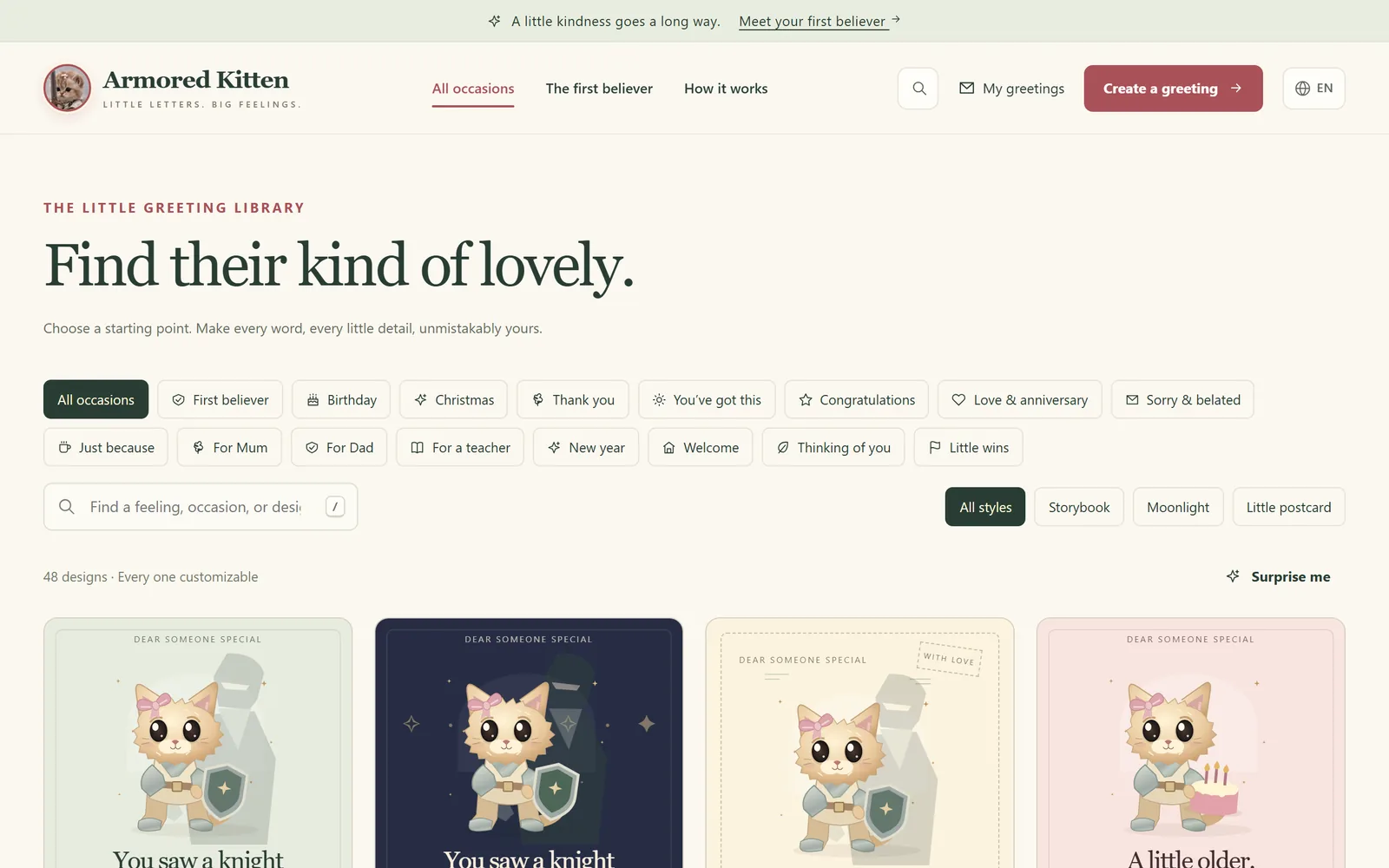
Not sure where to start? Surprise me picks a design for you. Choosing a design opens the editor. You can always go back with Change design, and your words come with you.
Step 1 of 4: The words
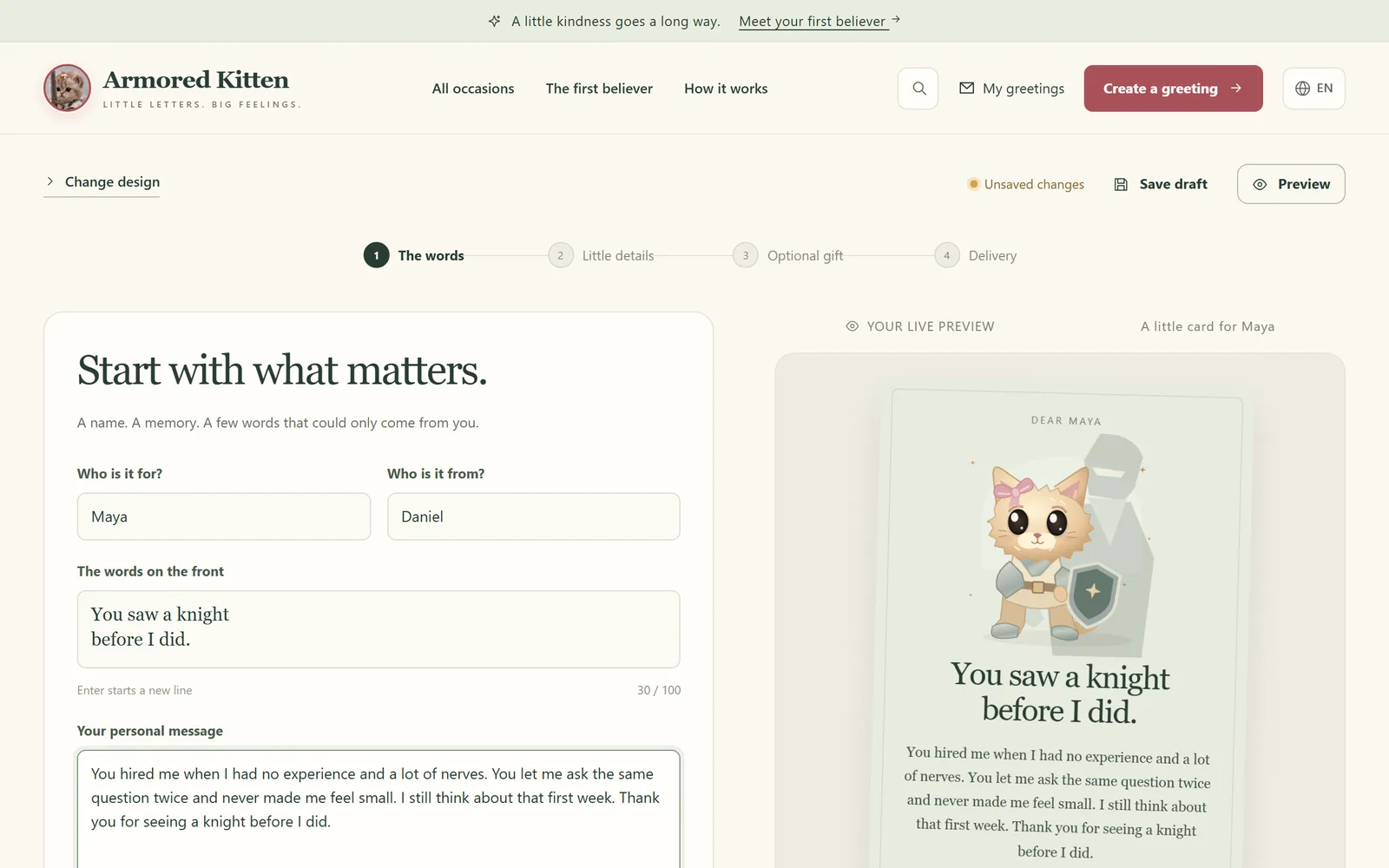
The first editor step holds the names and the message:
- Who is it for? and Who is it from? Use a nickname if that's what you call each other.
- The words on the front. Up to 100 characters. Press Enter for a new line.
- Your personal message. Up to 1,200 characters, with a live word count.
- A little tone of voice. Heartfelt, Playful or Poetic.
- Message language. The card's salutation and signature follow this language, even if the reader's menu is in another one.
Use the memory helper
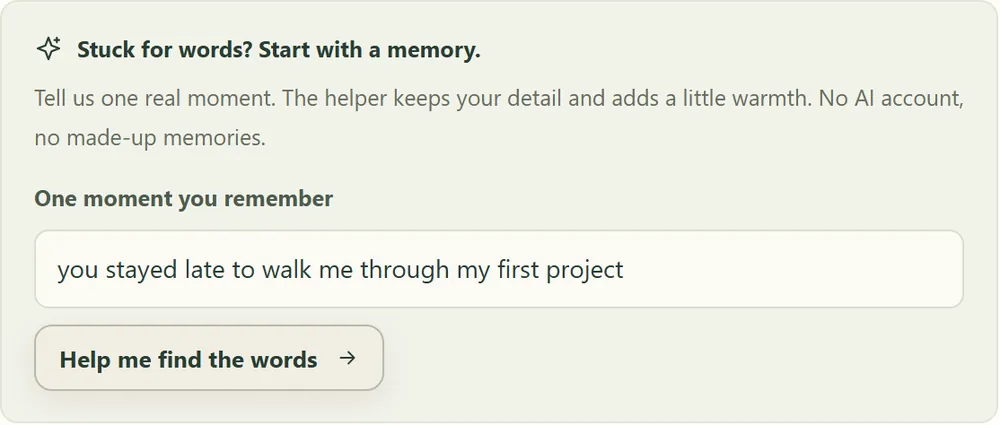
Stuck? Under Stuck for words? Start with a memory, type one real moment ("You hired me when I had no experience") and choose Help me find the words. The helper keeps your detail and adds a little warmth around it. It does not invent memories and needs no AI account.
For wording ideas by occasion, see our guides on birthday messages, thank-you notes for teachers and words of encouragement.
Step 2 of 4: Little details
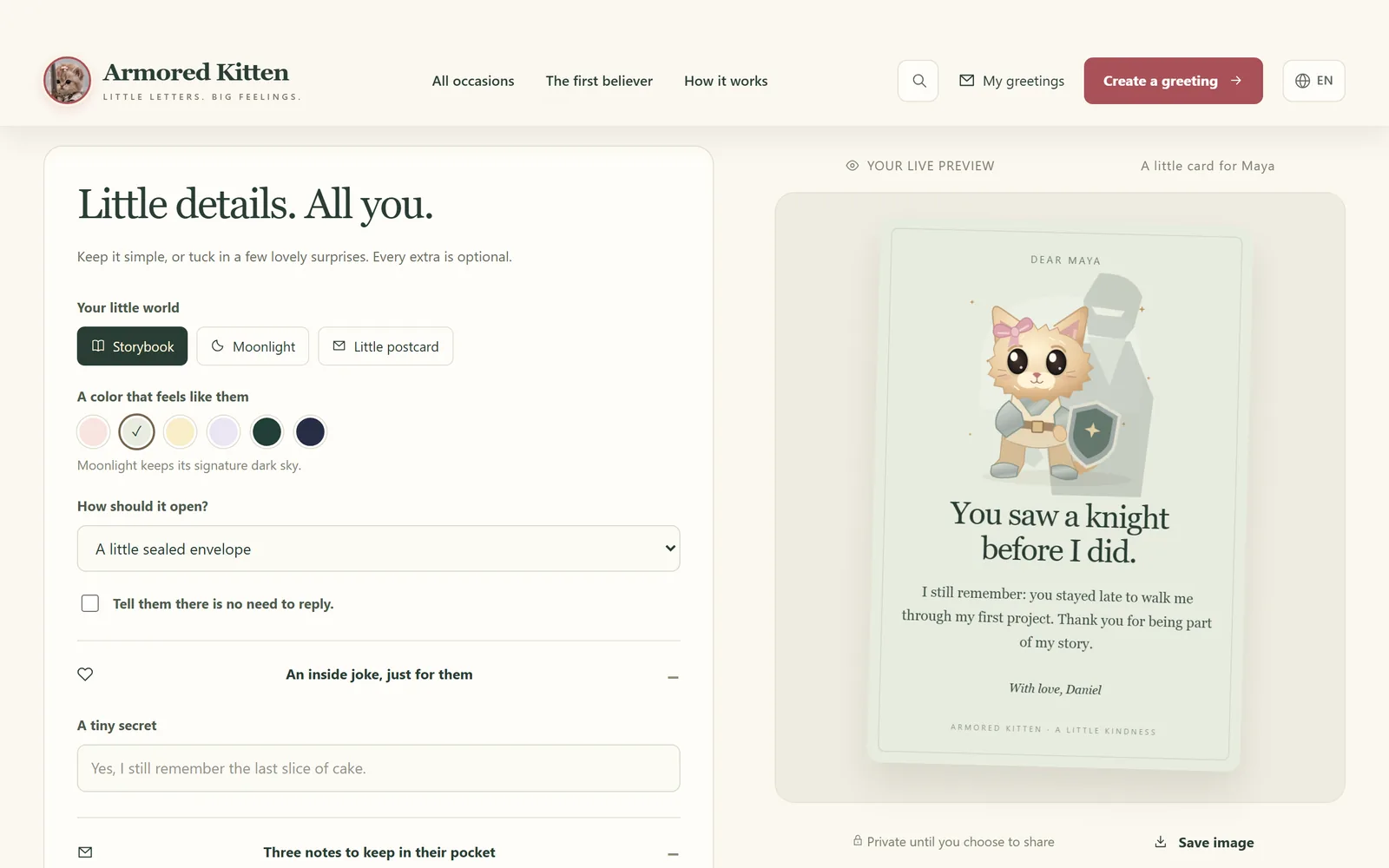
Everything in this step is optional. Keep the card simple or add a few surprises.
- Your little world: switch between Storybook, Moonlight and Little postcard.
- A color that feels like them: six palettes. Moonlight keeps its dark night sky.
- Tell them there is no need to reply: adds a gentle note and hides the reply box.
How the card opens
How should it open? offers three choices: A little sealed envelope, A moment of starlight, or Straight to the message for people who prefer no animation.
Inside joke and pocket notes
An inside joke, just for them hides a short line behind a button on the card. Three notes to keep in their pocket adds up to three tap-to-open notes, each with a label and a message. Empty notes are left out.
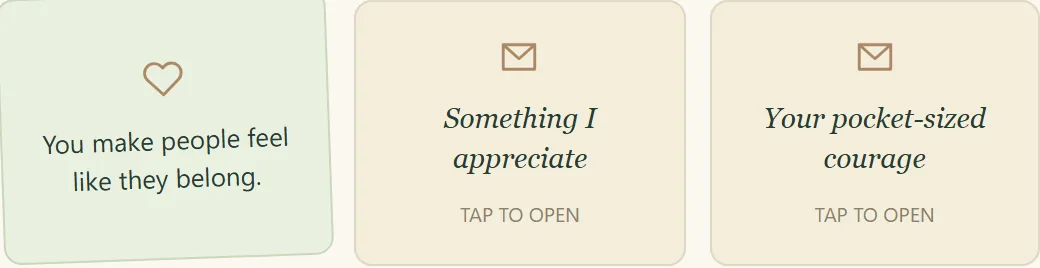
Photo and voice note
A photo of your favorite memory accepts PNG, JPEG or WebP. The photo is resized in your browser and its original metadata, such as location, is not uploaded.
Your voice, not a robot's records up to 20 seconds. Recording starts only after you tap Record a little note and allow microphone access, and the recipient's player never starts by itself. Our voice message card guide has tips for recording a warm note.
Step 3 of 4: Optional gift
Your greeting is complete without tokens. Just my thoughtful greeting is selected by default and needs no wallet.
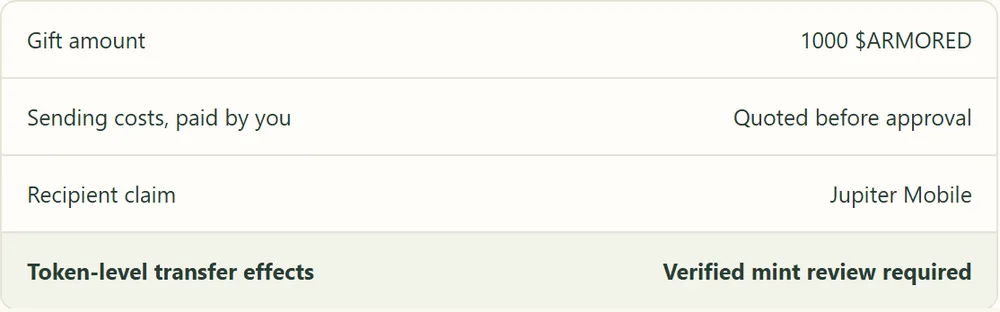
When gifting is turned on, choosing Add a $ARMORED gift lets you enter an amount. Gifts use Jupiter Send: you approve the transfer in your own Solana wallet and pay the sending costs shown before approval, and the recipient claims in Jupiter Mobile. Before your wallet opens, a review screen lists the recipient, network, amount, fee payer, quoted costs, expiry and the exact token mint.
To learn more before gifting:
- How to buy $ARMORED, for beginners: wallet setup and a first swap.
- How to check the $ARMORED mint: verifying the token before you buy or send it.
- Jupiter Send explained: claim links, expiry and what happens to unclaimed gifts.
- Is gifting crypto safe?: scams to avoid and a checklist.
Step 4 of 4: Delivery
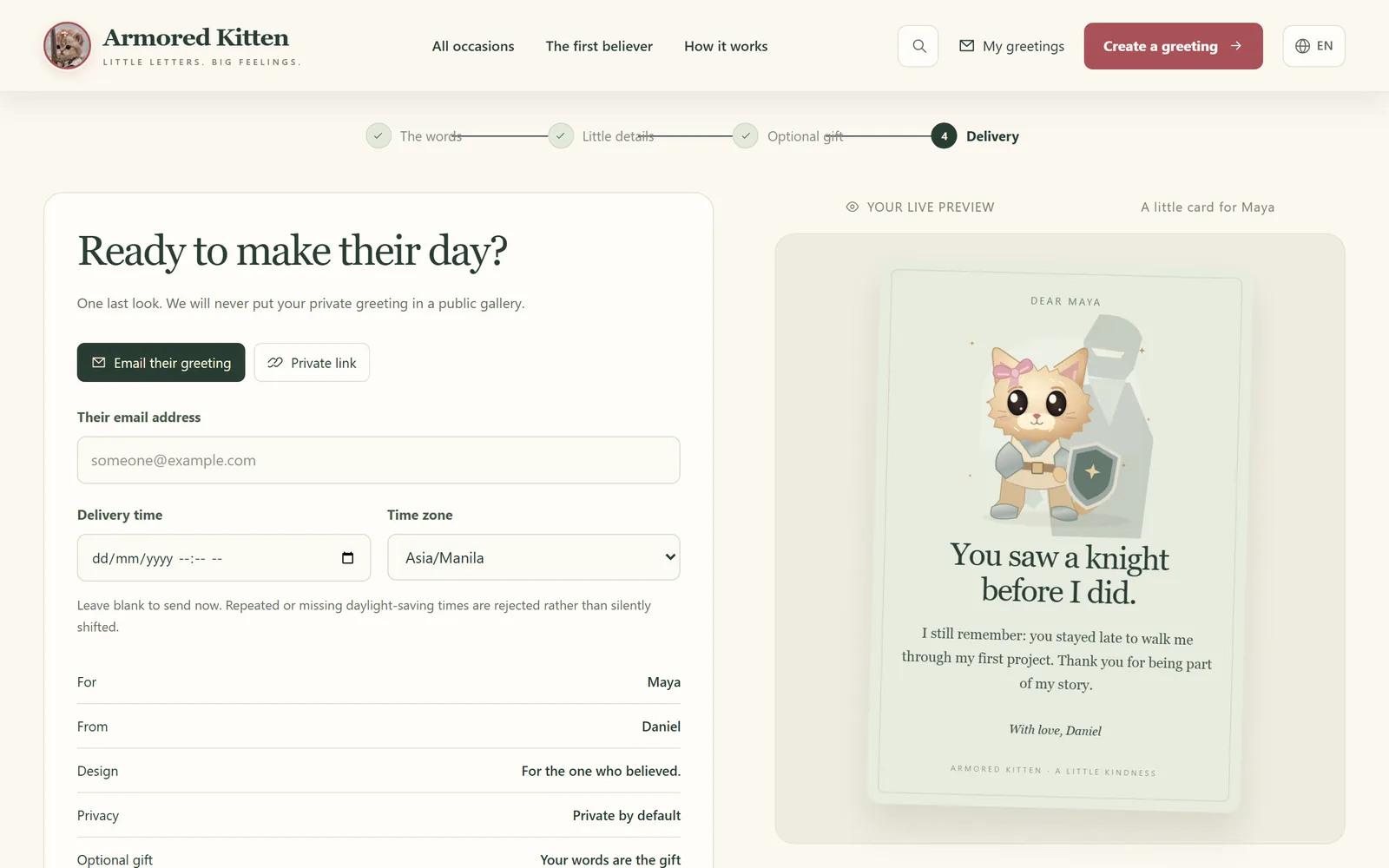
The last step decides how the greeting travels.
Private link or email
- Email their greeting: enter their address and we email them a private link to the card.
- Private link: you get a link to share yourself, in a chat app or a text message.
Verify your email
To send, verify your own email: type it under Verify your email to send, choose Send my code, then enter the six-digit code we email you and choose Verify email. There is no password to remember. Once verified, your drafts are saved to your account.
Schedule it for later
Choose Schedule for later, pick a Delivery time and the recipient's Time zone, so a birthday card arrives in the morning where they live. Times that are skipped or repeated by a daylight-saving change are rejected rather than silently shifted. Leave it on Send now to deliver right away.
Finally, tick the box confirming you have permission to contact them and choose Send their greeting (or Schedule greeting). For a private link, a window shows the link with a Copy private link button.
Preview, save and keep a draft
At the top of the editor:
- Save draft (or Ctrl S) keeps your work. If you leave, the homepage offers Pick up where you left off.
- Preview shows the card exactly as the recipient will open it.
- Save image downloads a picture of the card to keep or share.
My greetings: your postbox
My greetings in the top bar opens your postbox. It counts your greetings, drafts, scheduled cards and kind replies, and lists each card with its delivery status. Choose Refresh to check for new replies.
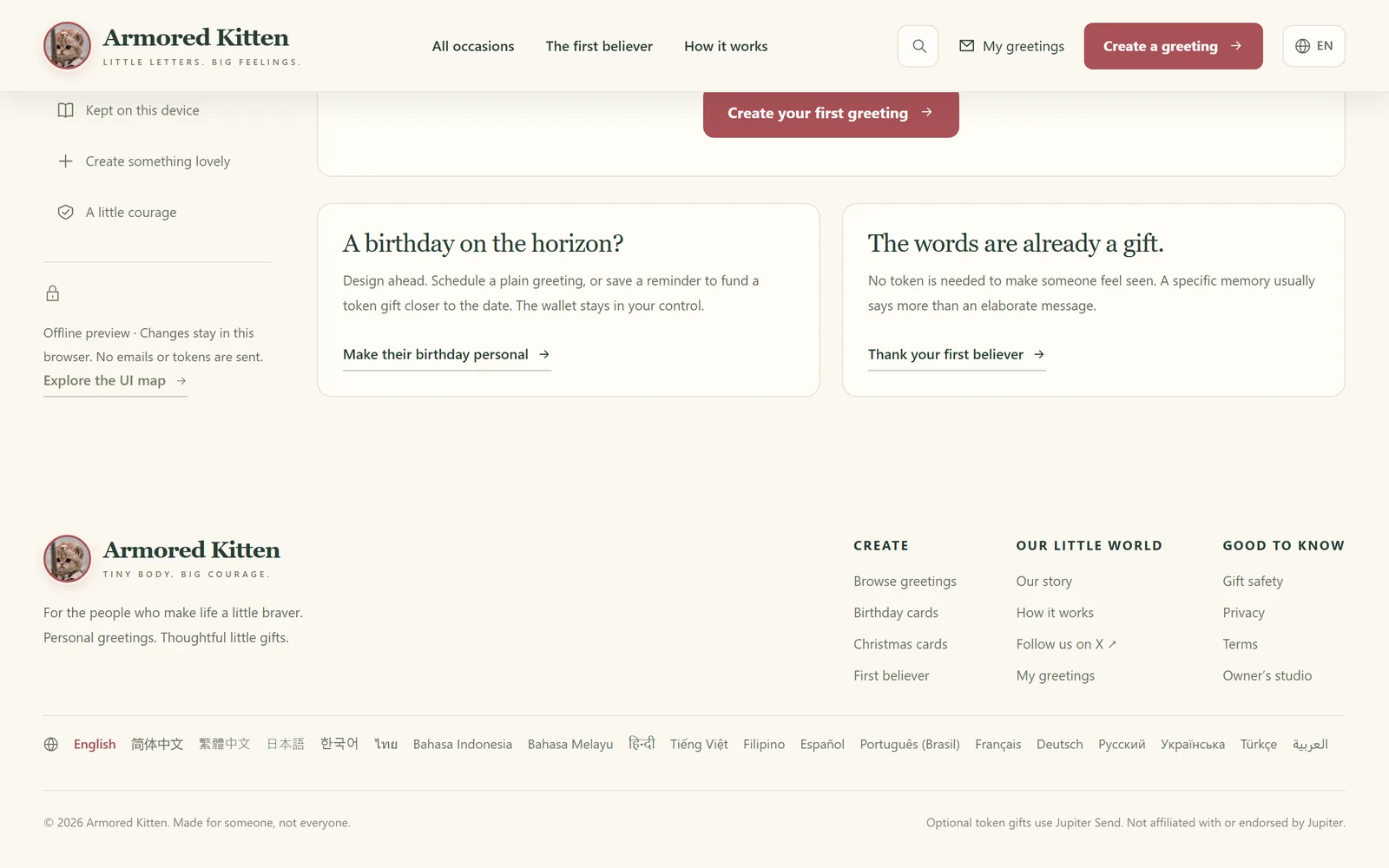
A delivery status describes what the email provider reported. "Accepted" means the provider took the email, not that it reached the inbox. If a card bounced, check the address with the recipient before sending again.
From the postbox you can also Download my data or Delete my account, which removes every greeting in it.
Opening a greeting you received
Received a greeting? Open the link from the email or message. You don't need an account, an app or a wallet to read it.
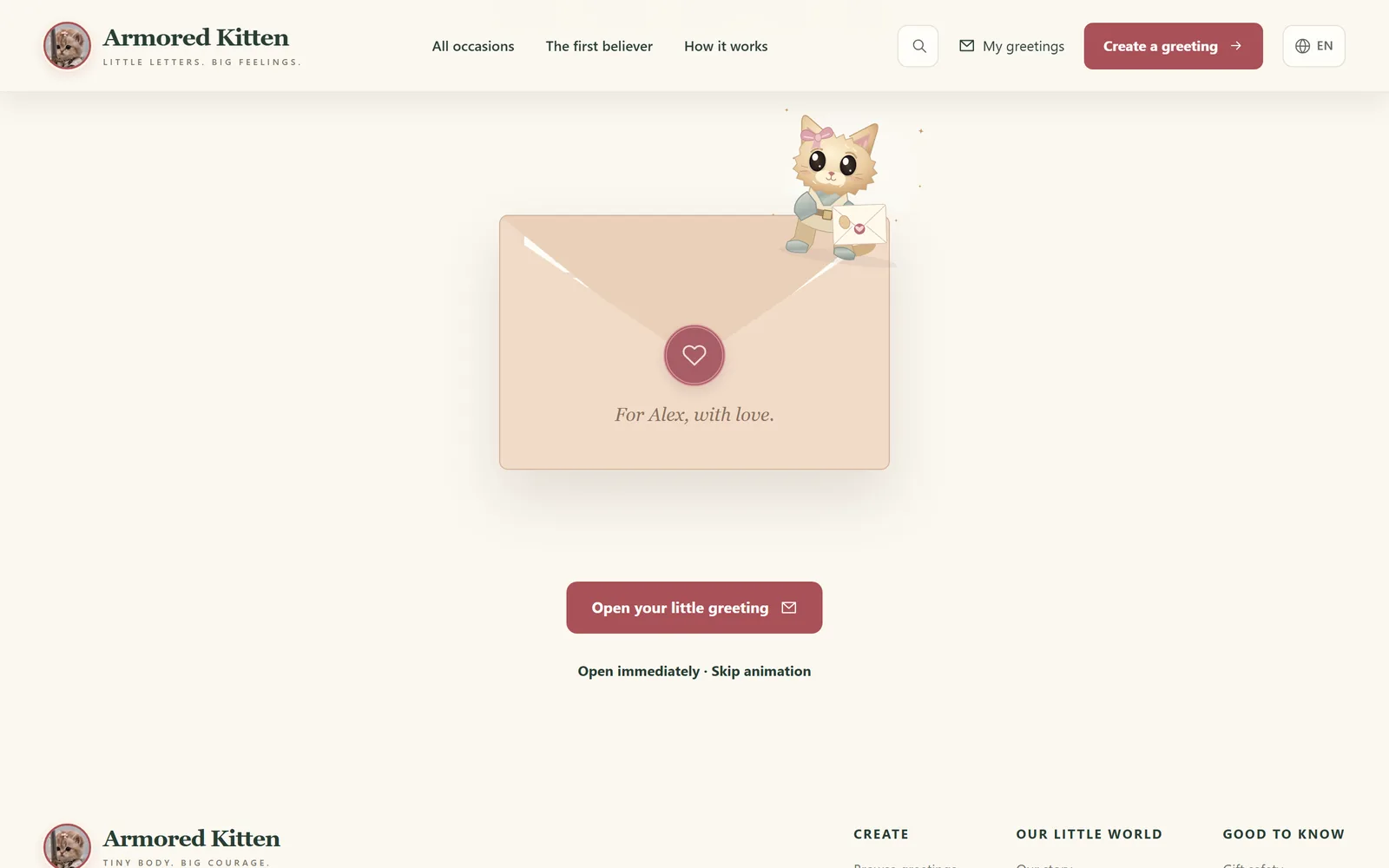
Tap Open your little greeting, or choose Open immediately to skip the animation. Then read the message, play the voice note if there is one, tap Something only you will understand for the inside joke, and tap each pocket note to open it.
Reply or keep the card
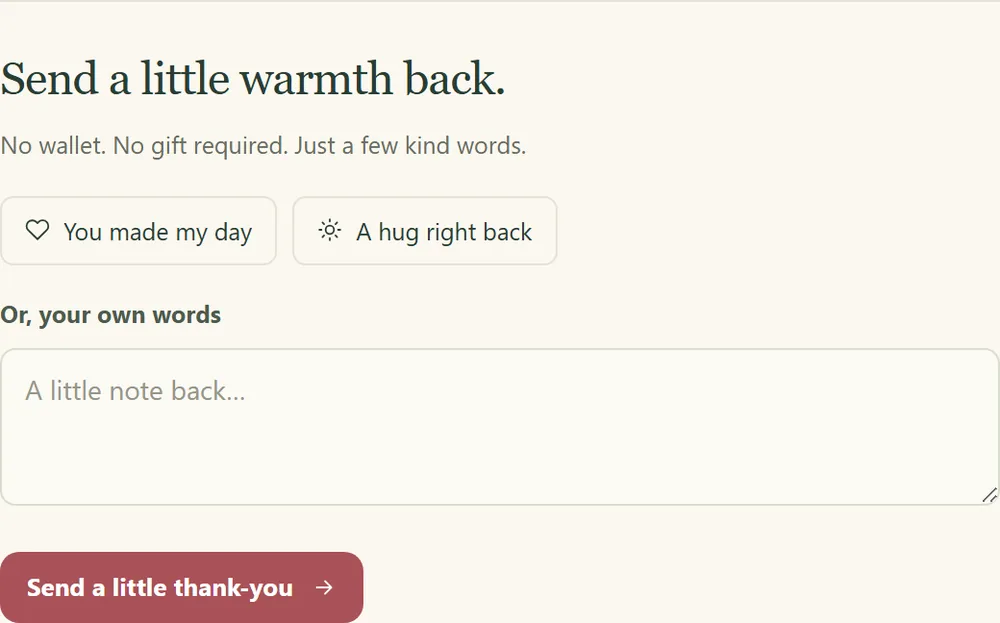
Under Send a little warmth back, pick a quick reply such as You made my day, or write your own words, then choose Send a little thank-you. The sender sees it in their postbox. To keep the greeting, choose Save the card image or Keep a greeting file.
Claiming a token gift
If a greeting includes a funded token gift, choose View private gift and claim it in Jupiter Mobile. You will never be asked for your seed phrase. Read how to claim a Jupiter Send gift before you start.
Stop future greeting emails
Every greeting email includes a link to stop future greeting emails to your address. Opening it shows a Stop greeting emails button. This only affects email; it does not claim, cancel or return a gift.
Staying safe
Armored Kitten never asks for your seed phrase or private keys, and a real greeting never needs them. If anyone asks, by email, chat or a lookalike page, it's a scam. Our crypto scams field guide and seed phrase scams guide explain the common tricks, and the Gift safety page explains how gifts, links and expiry work.
Frequently asked questions
Do I need a crypto wallet to send a card?
No. Cards, photos, voice notes, scheduling and replies all work without a wallet. A wallet is only needed by the sender when adding a token gift.
Is Armored Kitten free?
Making and sending greetings is free. If token gifting is enabled, the sender pays the sending costs shown before approving the transfer in their wallet.
Can I edit a greeting after I save it?
Yes, while it is a draft. Open it from My greetings and continue where you left off.
Can the recipient keep the card?
Yes. They can save an image of the card or a greeting file to keep offline.
Is my greeting public?
No. Greetings are private by default and never appear in a public gallery. Only people with the private link can open one.
What is the Armored Kitten AI companion?
It is a separate, private Telegram chat that helps with goals and daily check-ins. You don't need it to send greetings. See how to use the AI companion on Telegram.
Who runs Armored Kitten?
The Armored Kitten community runs this site.