Organize a group card
- Step 1Set up a card and deadline
- Step 2Invite contributors
- Step 3Review before sharing
See the public screen
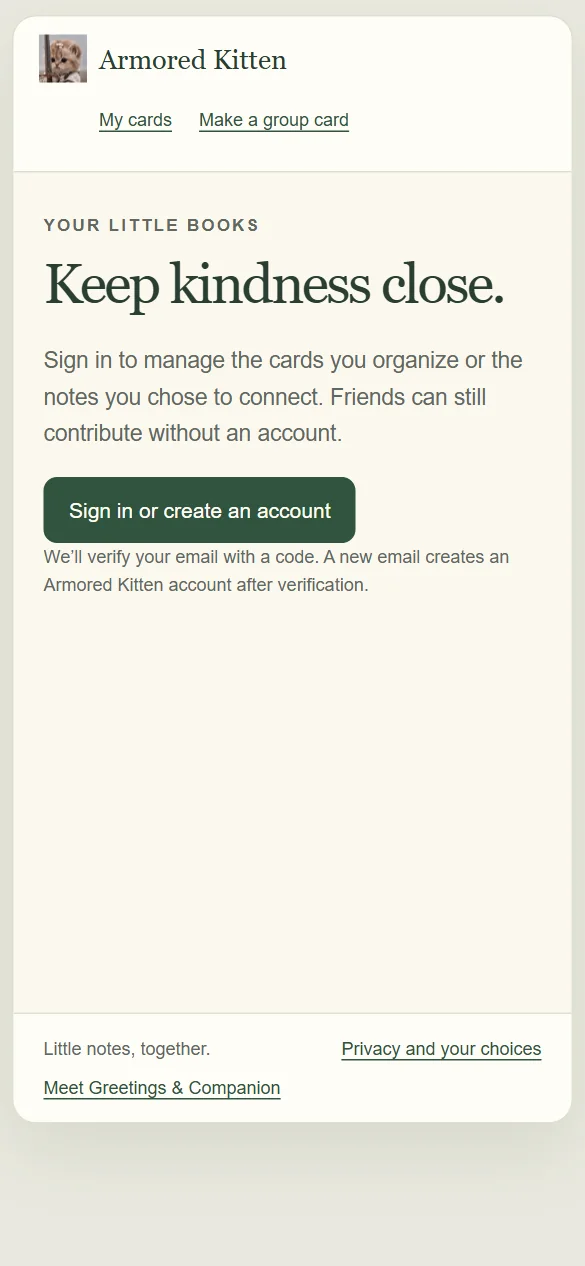
A group greeting card gives each person a small space to say something of their own. One organizer creates the scrapbook and reviews the notes. Guests contribute through an invitation, then the recipient opens the approved card through a separate private link.
When group cards are available in Armored Kitten, the Storybook scrapbook combines written notes, still photos and short voice recordings. These steps describe that shared card. The ordinary greeting tutorial covers a card made by one sender.

1. Create the card and set two times
Open group cards and sign in with the email code if needed. Enter the recipient's name, occasion and your organizer name. Set a deadline for people to add their notes.
Check the separate recipient opening time and named time zone before you continue. Leave yourself time between collection and the reveal to review the messages. The recipient's email is optional for private-link delivery; email delivery needs the intended address.
Choose the audience before opening collection. A private collection keeps other contributors' notes out of the invitation view. An approved-note preview lets invitation holders read approved notes. After collection opens, the audience can become more private but cannot expand. The card shows its expiry; it is not permanent storage.
2. Open collection and share the invitation
Use Open collection, then copy the invitation and send it yourself to the people you want to contribute. Keep your host access and recipient link separate. A forwarded invitation can reach someone outside the original group, so share it with care.
A short invitation might say:
We are putting together a farewell card for Alex. If you would like to add a message, please use the invitation I have shared by Thursday afternoon. A sentence is enough, and a photo or voice note is optional.
Replace the occasion and deadline with your actual details. For writing ideas, try farewell notes, work anniversary messages or coworker birthday wishes.
3. Add a note, photo or familiar voice
Guests open the invitation, choose Add your message and enter a display name and message. Names are self-entered; they are not proof of someone's identity.
A still photo is optional. Choose a supported JPEG, PNG or WebP, add a useful description and share only a picture you have permission to include. The upload is compressed and checked. Animated GIF uploads are not supported.
For a voice note, tap Record and allow microphone access. Record up to 30 seconds, listen to the preview and add a transcript that includes the spoken details. If the recording reads the written note exactly, use that confirmation instead. Playback needs a tap. You can always keep the contribution as text.
Save the note and wait for the saved confirmation. Keep its private edit link somewhere safe. If the connection fails, check the saved status or retry the same unchanged action before starting another note.
4. Choose whether to keep replies in an account
The email step comes after the note is saved. You may skip it and keep using your private edit link.
Choosing that step and confirming its email code creates your canonical Armored Kitten Studio account, or signs into your existing one, and connects the selected note. The page tells you when a new account is created. A one-time welcome email introduces Greetings and the Companion bot, with published tutorials and reading paths. It does not automatically link your Telegram identity or subscribe you to marketing.
Reply emails are a disclosed choice in this step. Change the preference from your saved contribution later. An unfinished verification does not undo a saved guest note.
5. Review, close and confirm publication
The organizer checks names, messages, photo descriptions and voice transcripts. Approve the notes you want to include, hide an unsuitable note and put the notes in the intended order. The host moderates visibility; contributors remain responsible for their own words.
Close collection and preview the approved scrapbook. Recheck the recipient, opening time, audience and delivery method. Complete the exact sender email-code confirmation for publication, including private-link delivery. If details or approved content change, get a fresh confirmation rather than assuming the previous one still applies.
Choose the private recipient link or supported email delivery. Scheduling and provider acceptance are separate from inbox arrival and from a person opening the card. Do not promise it will be read at a particular minute.
6. Open the scrapbook and say thank you, if wanted
The recipient can unwrap the ribbon or open without animation. Celebration sound is optional, and the Sympathy occasion uses a quieter presentation. Audio never needs to autoplay for the card to make sense.
The recipient can post one shared thank-you to the card, using the prepared message or their own text and optional voice. Posting alone sends no email. Email notices need contributors' verified opt-ins and verification of the original recipient email set by the organizer. That recipient verification uses the Studio account flow too. If there is no original recipient email to verify, the reply stays on the card.
Contributors can read the released shared thank-you from their own saved note. Their edit link does not open everyone else's contributions or reveal email addresses.
Keep private access and expiry in mind
Unpublished cards expire after 30 days without saved activity. A saved contribution or organizer change extends that draft window. Published cards expire 365 days after availability; check the displayed date. Keep the private recipient and edit links within their intended audience. An author can withdraw their own note and attached media, or replace their private recovery link from an authorized note view. Already sent email and copies somebody saved cannot be recalled.
The current group card does not provide a printable scrapbook, a PDF or an image export of the full board. An author's note export is separate and does not make playable audio permanent. Read privacy and account information, or return to the group-card introduction before organizing your first card.