Before your evening wind-down, spend ten minutes sorting your phone's alerts into three groups: ones you must keep, ones that can arrive quietly, and ones you do not need in the evening at all. Turn off or quiet only the apps that need it, add exceptions for the people who must be able to reach you, then test the result. A notification review is a setup you revisit now and then, not a nightly task.
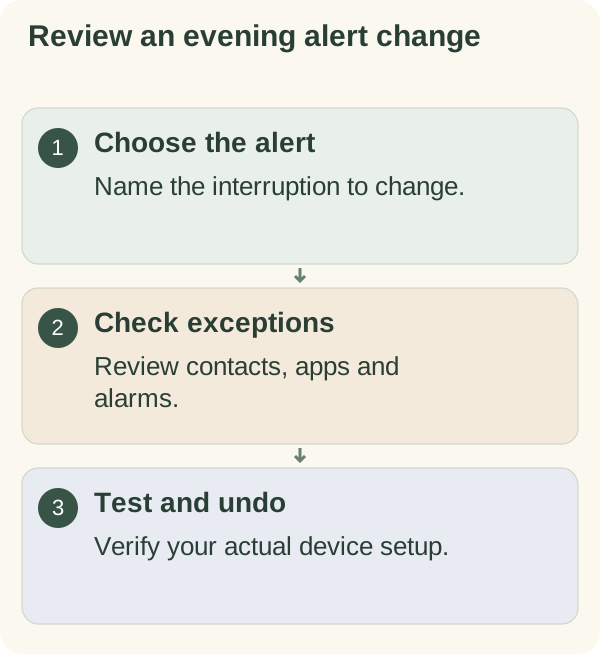
Start with the alerts that actually interrupt you
Do not start in Settings. Start with a list. For two or three evenings, notice which alerts pull you back to your phone: a group chat, a news app, work email, a shopping app, a game. Most people find that a handful of apps cause most of the interruptions.
Then name the narrowest change that would help. Turning off one app's notifications is a different change from switching on a mode that silences almost everything. The narrower change is easier to understand and easier to undo.
Before you change anything, check whether you have responsibilities that require you to stay reachable in the evening, such as an on-call rota, caring for someone or a teenager who is out.
Sort your alerts into keep, quiet and off
| Group | Typical examples | What to do in the evening |
|---|---|---|
| Keep | Calls from family, a carer or school; alarms; an on-call app | Allow through any mode you use |
| Quiet | Group chats, personal email, delivery updates | Deliver without sound; read when you choose |
| Off | Shopping offers, game prompts, news alerts, social media likes | Turn off for that app, or silence in the evening |
Your groups will differ. A delivery app might be a "keep" on the night a parcel needs signing for. The aim is to decide on purpose rather than accept every app's default.
Review the evening setup
- Need:
identify the alerts you want to change.
- Device:
check the instructions for your model and software version.
- Exception:
review people, apps and alarms you need to remain available.
- Change:
adjust only the settings you choose.
- Verify:
test the arrangement and check how to turn it off.
An iPhone example
In Apple's current Focus instructions, you open Settings, choose Focus and select a Focus to review. People and Apps control which notifications are allowed; scheduling and sharing across devices have separate settings. Check the guide version for your device and look at those choices before relying on them.
If you share a Focus across devices, a mode you switch on for your phone may also affect another device signed in to the same account. Check that setting if you use an iPad or Mac for work.
An Android example
Google's notification instructions describe opening Settings, then Notifications and App notifications to review an app. Google notes that steps vary by device. Its Modes and Do Not Disturb guide separately explains filters for people, apps, alarms and other interruptions. Older versions and other manufacturers may use different paths and names.
Example: Maya's group chat evenings
The example below is illustrative; the person in it is not real. Maya is in four group chats: family, work friends, a running club and a neighbourhood group. In the evening her phone buzzed every few minutes, and each buzz became ten minutes of scrolling. She also looks after her mother, who lives alone and sometimes rings at night.
She sorted her alerts:
- Keep: calls from her mother and her brother, and her alarm.
- Quiet: the family group and the running club.
- Off in the evening: the neighbourhood group, the work-friends chat and a shopping app.
She set up an evening mode with her mother and brother as allowed contacts, scheduled it to start after dinner, then asked her brother to ring her as a test. The call came through; a test message in the neighbourhood group made no sound. After a week she changed one thing: the running club moved from "quiet" to "off", because she realised she only ever read it in the morning anyway.
If someone may need to reach you at night
This is the part most notification advice skips, and it matters most. If you are a carer, the parent of a teenager who is out, on call for work or someone's emergency contact:
- If the person calls rather than messages, allow calls from them specifically, and check whether repeated calls from anyone can break through on your device.
- If they use a particular messaging app, make sure that app's notifications from that person are allowed, not only phone calls.
- If you are on call, follow your rota's instructions and keep the on-call app or number in your "keep" group.
- If you are unsure, leave device-wide modes off and use per-app changes instead. Turning off a shopping app cannot make you miss an emergency call.
Test the arrangement with the person involved. Do not assume every notification or alarm behaves the same way across modes and software versions.
Use this test card after any change
NOTIFICATION TEST        date: ______  device: ______

Mode or setting changed: ____________________
Starts: ______  Ends: ______  (or: manual)

[ ] Call from allowed contact rings       tested with: ______
[ ] Message from allowed contact alerts   tested with: ______
[ ] Silenced app stays silent             tested with: ______
[ ] Alarm sounds with the mode on
[ ] I know how to turn this off: ____________________
Keep the card in your notes. If something stops working after a software update, it tells you exactly what you set.
What silencing does and does not do
Silencing an alert does not send a message, change a work agreement or stop an app from processing your data. If privacy matters to you, review lock-screen previews and any sharing settings separately.
The Armored Kitten companion's own messages have their own message controls. Changing your phone's settings does not change what the companion is set to send, and the reverse is also true.
This article does not change any setting for you or promise a sleep benefit from a particular configuration.
Review it, then leave it alone
Once the setup works, you do not need to repeat the review every night. Look at it again when you change phones, after a major software update, or when a new app starts interrupting your evenings.
Taking one interruption out of your evenings is a small, specific step, the kind Armored Kitten is built to help with. The planning and reflection hub has more guides for planning your days.
Use wind down for the evening to choose whether a notification review is tonight's useful final task. Read simple evening wind-down for the separate choice to leave other tasks until later.
The preparation and stopping-point fields in the Morning and evening preparation cards can hold the one notification check you choose for tonight.
Questions people often ask
Should I put my phone on Do Not Disturb every evening? Only if it fits your responsibilities. Per-app changes are often enough and carry less risk of missing an important call.
Will my alarm still go off in a Focus or Do Not Disturb mode? Alarms are usually handled separately, but check your device's instructions and test it.
Do silenced notifications disappear? Generally they still arrive and can be read later without making a sound. Check how your device lists them.
How often should I redo this review? When you change phones, after a big software update, or when a new app starts interrupting you.