Verify a calendar entry
- Step 1Check day and time zone
- Step 2Read the confirmation
- Step 3Find the saved event
Use /calendar in the private companion chat to review its built-in reminders. Choose the recurrence and local time carefully: a valid direct add command saves the entry immediately. Check the resulting card and return to it when plans change.
Manage the private calendar
Send /calendar for today's schedule. Use /calendar month for Month. In English, the cards show a PNG summary and an Open calendar in app button for the same selected date and view. In the private Mini App, open Manage calendar reminders for the offered add, edit, pause, resume or remove action. Read a deletion confirmation before completing it. Other bot languages currently keep their localized text cards.
The itinerary commands serve different views:
/calendar todayshows the current local day's entries.- In English,
/calendar weekshows the Monday–Sunday week containing today; the private Mini App uses that week range too. Other bot languages currently show the next seven local days in the text itinerary. /calendar day YYYY-MM-DDselects a date. ReplaceYYYY-MM-DDwith the actual ISO date you want to review.
A PNG card is a summary. In the private Mini App, open Schedule as text for the readable list and choose an item to manage it in its owning tool. Use Manage calendar reminders for Calendar reminder controls. Localized text itineraries can show fewer entries per day in Week than in a selected-day view.
Add a reminder with the intended recurrence
Use the card's add controls and follow the prompts, or enter a supported command. Examples of recurring arrangements are:
/calendar add daily 09:00 Read the plan/calendar add weekly 1 09:00 Review the week/calendar add monthly 15 10:00 Check the household list
The weekly number is the weekday, with 1 for Monday through 7 for Sunday. Use a separate entry for another weekday when needed. For a one-time reminder, choose the actual date and time in the offered flow rather than copying an old example date.
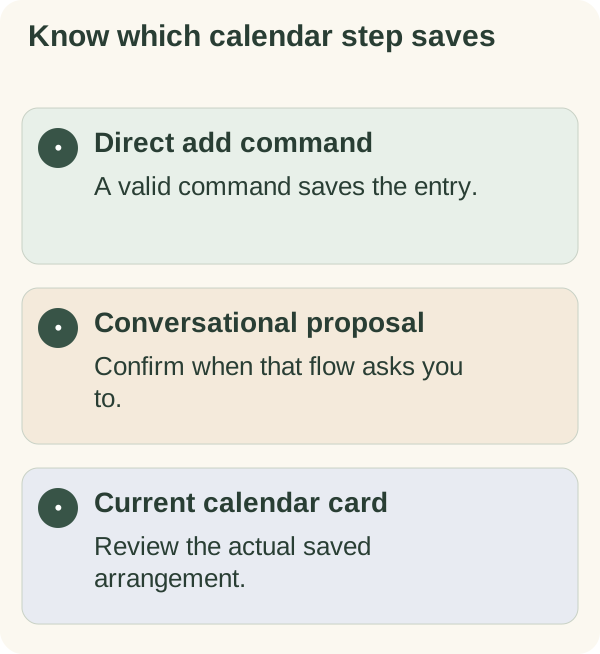
Direct /calendar add commands save a valid entry after the time-zone and schedule checks, then return its ID and the calendar card. They do not first display a separate approval button. Check the command before sending and review the saved date, time, title and recurrence afterwards.
If a conversational flow instead shows a reminder proposal with a confirmation control, review and confirm that proposal as instructed. A draft suggestion in chat is different from a saved entry. Set the saved time zone first if the bot asks for it.
Morning schedule previews
Calendar previews are controlled separately from individual reminders. Use /calendar digest off to stop those previews and /calendar digest on when you want them enabled, then review the confirmation.
Schedule Today starts on by default. Eligible morning deliveries show Today at the saved morning time and time zone, including on Mondays and days with no planned items. Its morning time is shared with Daily Companion. Open Schedule Today settings to turn it off. In the bot, Change morning time in app opens the shared setting in the private Mini App; edit Morning delivery time and choose Save morning time. Account state, service configuration, Stop, Pause, quiet hours and delivery limits still apply. An enabled preference does not guarantee a message in every period.
Pausing previews leaves existing reminder entries in their own states. Pausing a reminder does not necessarily turn off the broader digest. Review the control that matches the change you intend.
Delivery and self-reported completion
The service checks the saved zone, entry state and relevant access and delivery conditions. Telegram can delay or reject a message. An uncertain delivery is not proof that the event happened or that the recipient saw it.
Use Done on a reminder that offers it to record your own check-off for that occurrence. This self-report does not independently verify attendance or the action. Open a fresh reminder if its old button no longer matches the entry.
If an important arrangement changes, confirm it with the person or provider involved. Editing a reminder does not reschedule an outside appointment or change an official deadline.
Keep titles and account data appropriate
Reminder titles appear in the calendar and reminder messages, so keep them brief and non-sensitive. Use the privacy guide for the broader data explanation, especially if you also discuss the arrangement in AI chat.
Check Settings and the time-zone guide when a time looks wrong. Use troubleshooting for unavailable controls and the forget guide for broader companion deletion.