Write and find a note
- Step 1Choose a private entry point
- Step 2Save one short note
- Step 3Check the diary view
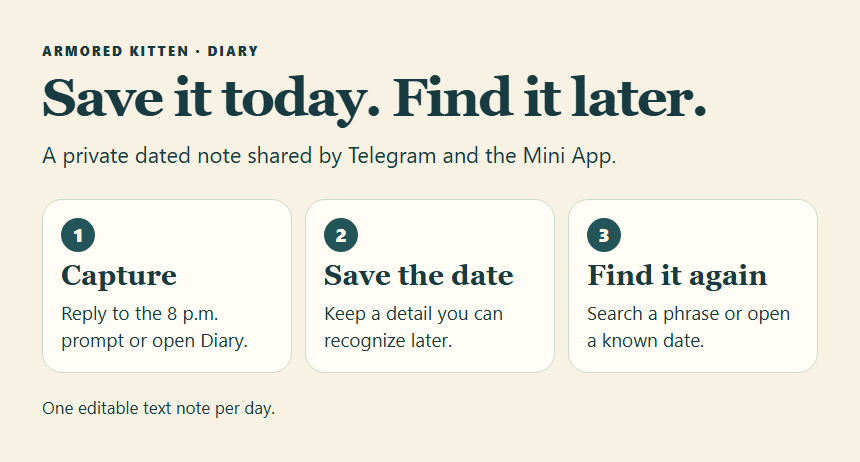
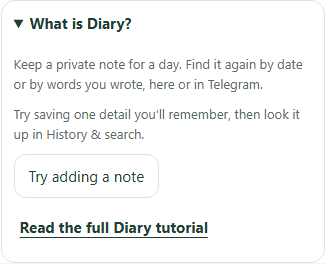
Armored Kitten Diary is a private place to save a detail you want to remember about a particular day. You can write it in your private Telegram chat or in the Mini App, then find the same saved entry on either surface. Each date has one editable text note. A few sentences about a decision, a visit, or a moment worth keeping can be enough.
The most useful part comes later. Suppose you can picture a conversation about a library workshop but have forgotten which day it happened. Search for “library workshop” to see matching dated entries. If you already know the day and want to recover the details, open that date directly. Diary gives you a way to keep the details that make a later review of your week easier.
What Diary can do
Diary works best as a record of what you deliberately write down. You can save a new day, return to an earlier date, edit the text, delete the saved entry, and search your own history. You can add more than one thought to a day by separating the notes with blank lines. A second Telegram add appends to that day. Saving an edit in the Mini App saves the whole text currently in the editor.
The Schedule view and Diary answer different questions. Use a Calendar reminder when you want a nudge to do something later. Use Diary when you want to remember what happened, what you decided, or how a plan changed. For example, the Calendar can remind you to call the library on Friday. A Diary note can remember that the librarian offered the upstairs room and asked for a headcount. You can use both on the same day, with each entry serving its own purpose.
Save a note when the detail is fresh
Open the private chat with Armored Kitten. Send a message such as:
/diary add Library workshop: Maya booked the upstairs room. The room fits 18 people.
The bot confirms the date it saved to. Check the date on that confirmation if you wrote close to midnight or while travelling. The ordinary command uses the day of your message in your saved time zone. You can name an earlier date explicitly when you mean to file the note under a different day.
In the Mini App, open Today → Diary, then choose Add today’s note. Write your text and tap Save diary note. Wait for the confirmation before closing. To add a second memory in the editor, leave the existing text in place and add your new lines. Use blank lines or short labels to make several details easy to scan. Each note accepts up to 2,000 characters, so a brief daily entry is usually easier to maintain and search than a transcript.
If you are already looking at a day in Calendar, select that day and choose Diary for selected day. You can also use the date field in the Diary editor. This is useful when you are reviewing a weekend or reconstructing a sequence from earlier in the month.
Use the 8 p.m. check-in
Eligible accounts have the daily check-in on by default. At 8 p.m. in your saved time zone, the bot can ask what happened that you want to remember. The prompt can arrive even if you already saved something earlier. It gives you another chance to add a detail, and your day’s existing note stays available when you open it.
To stay in Telegram, use Reply on the prompt and type the note as a normal message. The bot adds it to the date on that prompt and confirms the date in chat. If you reply after midnight, the prompt still points to the earlier day. A regular chat message outside that reply keeps its normal meaning. You can use /diary add whenever you want to file a note from chat.
Tap Add a note if you want to see the whole entry before writing. It opens the date on that prompt in the Mini App. Review any text already saved there, add your new detail beneath it, and save.
If you have never set a time zone, Diary uses 8 p.m. UTC. That can be a different clock time where you live. Choose Time zone settings on the Telegram prompt or open Evening check-in settings in Diary. Use this device saves the time zone reported by your device to your shared companion account. In the private Telegram chat, /timezone also lets you pick a zone. A saved time zone is shared with other time-based companion features, so review it when you are travelling and want your reminders to follow a different clock.
Quiet hours and account-level Pause or Stop still apply. If a prompt is missing, check the saved time zone, the Diary toggle, and your wider notification settings. You can open Diary manually any time you want to save a memory.
Remember when the event happened and when you wrote it
A Diary entry’s date is the day you chose to file it under. For a note you write on the same day as the event, one date is usually enough. If you are recording the event later, you may want to preserve a second date inside the text. That gives you two different ways to recognize the memory when you find it again.
Worked example with sample details. Maya helped run a library workshop on November 5. She only sat down to write about it on November 8. She opens November 5 in the Mini App or uses an explicit date in Telegram:
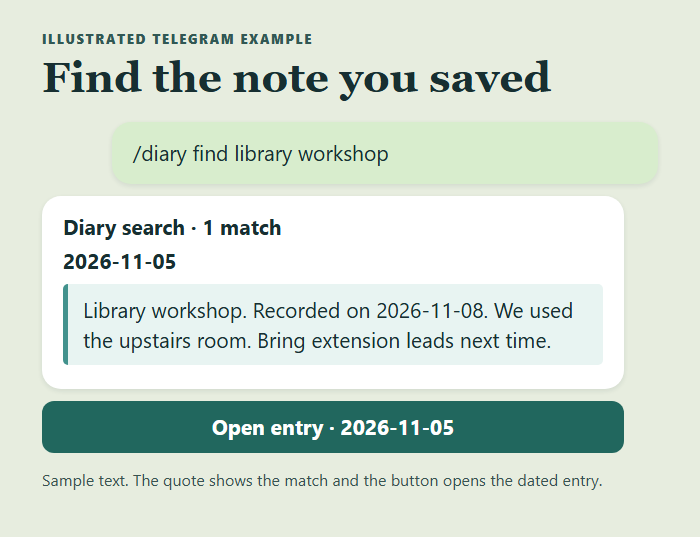
/diary add 2026-11-05 Library workshop. Recorded on 2026-11-08. We used the upstairs room. Bring extension leads next time.
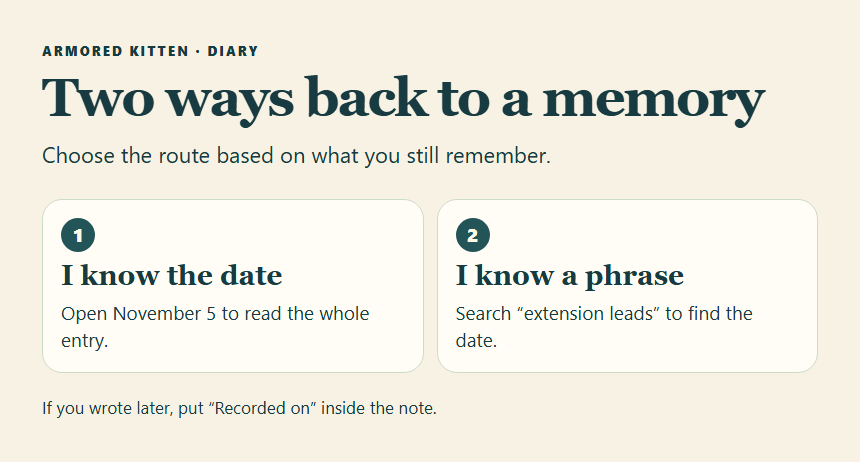
The entry is filed under November 5, the day of the workshop. The text preserves November 8, when Maya wrote the note. In January, she can open November 5 to recall the event, or search for “extension leads” if that is all she remembers. If she wonders when she wrote the reminder, the “Recorded on” line answers it. A later edit can change the saved text, so put the original writing date in the text when it matters to you.
Sometimes the event date is uncertain. Save the best detail you have and say that the date is approximate. For example, “Recorded Nov 8. The workshop was around Nov 5. Need to confirm from the room booking.” You can edit the wording later when you have the exact date. When several events belong to the same day, give each its own short label and add the time to the line when it matters.
Here is a fill-in format you can copy into a note:
Event or moment:
When it happened:
Recorded on:
Detail I want to remember:
A word I will probably search for later:
Use only the lines that help. “Riverside walk, saw a violet heron near the old bridge” already has enough detail to search for later. Adding a place, name, or uncommon object usually gives you a better search term than “nice day.”
Find a memory in the Mini App or Telegram
Choose History & search in Diary. Enter a word or phrase from your note, optionally narrow the date range, and open a matching entry. History is useful even with an empty search field when you simply want to browse recent notes. If the first set of dates is too recent, continue to older results or narrow to a period you remember.
When you remember a fragment, start with one distinctive part of it. Search “library workshop,” then “extension leads” if you used more specific words in the saved note. A common word like “meeting” may match several days, so add a tighter date range or choose a word that only appears in the note you want. The search uses the words in the text. If you wrote “upstairs room,” a query for “second floor” can miss that entry. A second try with “room” can recover it.
In your private Telegram chat, send /diary find library workshop. The bot returns dated excerpts and an Open entry button for each match. Tap the date you want to read the complete text in the Mini App. If you know the date already, send /diary 2026-11-05 or ask “What happened on 2026-11-05?” The answer comes from the entry you saved. An empty date has no saved account of that day.
| What you remember | Start here | What to try next |
|---|---|---|
| The exact event date | Open that date or send /diary YYYY-MM-DD | Check an adjacent day if the event was around midnight |
| A name, place, or distinct phrase | Use History & search or /diary find | Try a shorter phrase you actually used |
| An approximate week or month | Set a date range in History | Open dates with relevant excerpts |
| The day you wrote it but the event happened earlier | Search a “Recorded on” line if you added one | Search for an event detail and compare the dated matches |
Pick a use that fits your week
Work and projects. After a meeting, keep a decision and the detail you may need to check later. “Library workshop. Upstairs room confirmed. Bring extension leads” is easier to recover than a long transcript. Add a task or reminder separately if someone still needs to do something.
Home and life admin. Note the day you handed over a key, checked a repair, tried a paint sample, or talked with a building caretaker. Write a memorable term such as “hallway paint” and the relevant detail. Keep official documents and account credentials in the service you use for those records.
Travel and outings. Save the place, route, or little thing you want to remember. A line like “Riverside loop, violet heron by old bridge” is a better memory cue than a general summary. If a late-night visit crosses midnight, file it under the date you think of as the event and put the time or second date in the text.
Habits and learning. A habit check-in records that you did the action. Diary can hold the short explanation you want to revisit, such as which part of a piano exercise finally made sense. A month later you can search “left-hand rhythm” and see your earlier observation. Keep progress numbers in the relevant feature if you want them counted there.
People and ordinary good days. Record a small kindness, a new recipe you tried with someone, or a story you want to tell again. A named place or shared activity often makes it easier to find than a vague label. Write only details you are comfortable keeping in your account.
Weekly reflection. Open a few dates and look for one thing you would repeat and one thing you would change. You can use that observation to choose a small step for next week. Diary lets you leave days blank. When a week is busy, one useful entry is a perfectly workable record.
Edit, delete, and keep your diary private
Open an entry from History, make the change, and save. If you had the same date open on another device, check the latest saved text before replacing it. A newer edit can win while an older editor is open. Read the current entry and merge the lines you want to keep if the Mini App asks you to reopen it.
Use Delete this note in the Mini App to remove the saved entry for that day. Confirm only when you want to remove all of that day’s Diary text. Earlier messages in Telegram, including command text and quoted bot replies, are separate chat messages. Manage them in Telegram if you also want to remove the copies that appear there.
Diary entries are tied to your companion account and stored encrypted by Armored Kitten. Open your own private dashboard from Telegram when you want to read them. Keep passwords, verification codes, and sensitive records in tools built for those purposes. If a shared device has someone else’s Telegram session open, switch to your own account before writing. The public tutorial and its sample screens contain no personal entries.
To try the full loop, save one detail you are happy to keep. Open History, search for a word you used, and open the matching date. Next time you are trying to remember when something happened, you will already know the two routes back to it. The private dashboard guide covers the rest of the planning tools, and Learn has reading paths for building a routine that fits your week.