A personal greeting
The message is yours to read even if you choose not to claim the optional token gift.
 Armored KittenSmall knight. Big feelings.
Someone sent you a little kindness
You do not need to know what a wallet or blockchain is. This guide explains the words, shows the path and helps you pause safely whenever something is unclear.
No account or wallet is required to read this guide. Claiming is optional; the greeting is yours either way.
Step 1
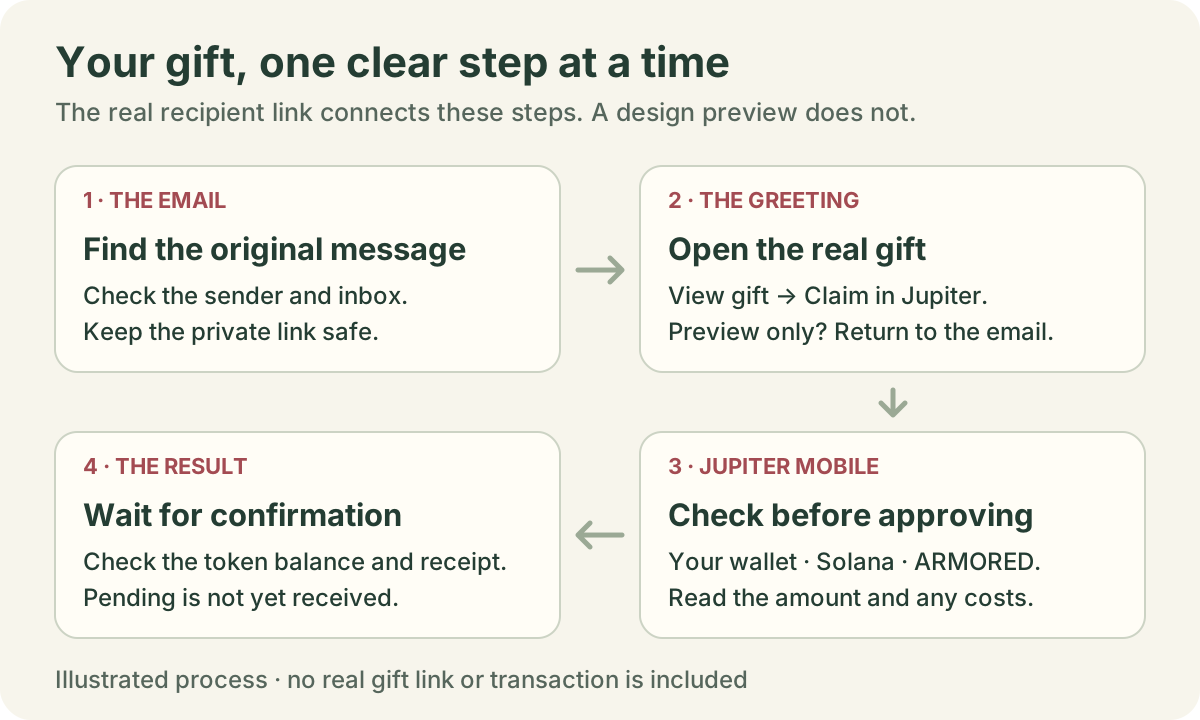
Open the inbox the sender used. Look for a message from Armored Kitten <gift@stonkbuilder.com>, usually with a subject such as “Someone sent a little kindness, just for you.” The sender’s name may appear in the subject.
Check Spam, Junk, Promotions, All Mail and Trash. In Gmail, search in:anywhere from:gift@stonkbuilder.com. Check that you are viewing the right email account.
A mail-server “delivered” status does not prove the message is in your main inbox. If it is still missing, ask the sender to confirm the full address in their postbox. Do not ask them to fund a second gift just because the email is hard to find.
If you did not expect this gift, contact the person through a phone number or chat you already know before opening its private link. A familiar display name by itself does not prove an email is genuine.
Use the email’s greeting button. Reading the greeting does not require a wallet. Keep this original email so you can return after installing the app.
Step 2
The message is yours to read even if you choose not to claim the optional token gift.
This gift contains ARMORED on Solana. It is not cash, a bank deposit, or a stablecoin pegged to a dollar. Its market value can change.
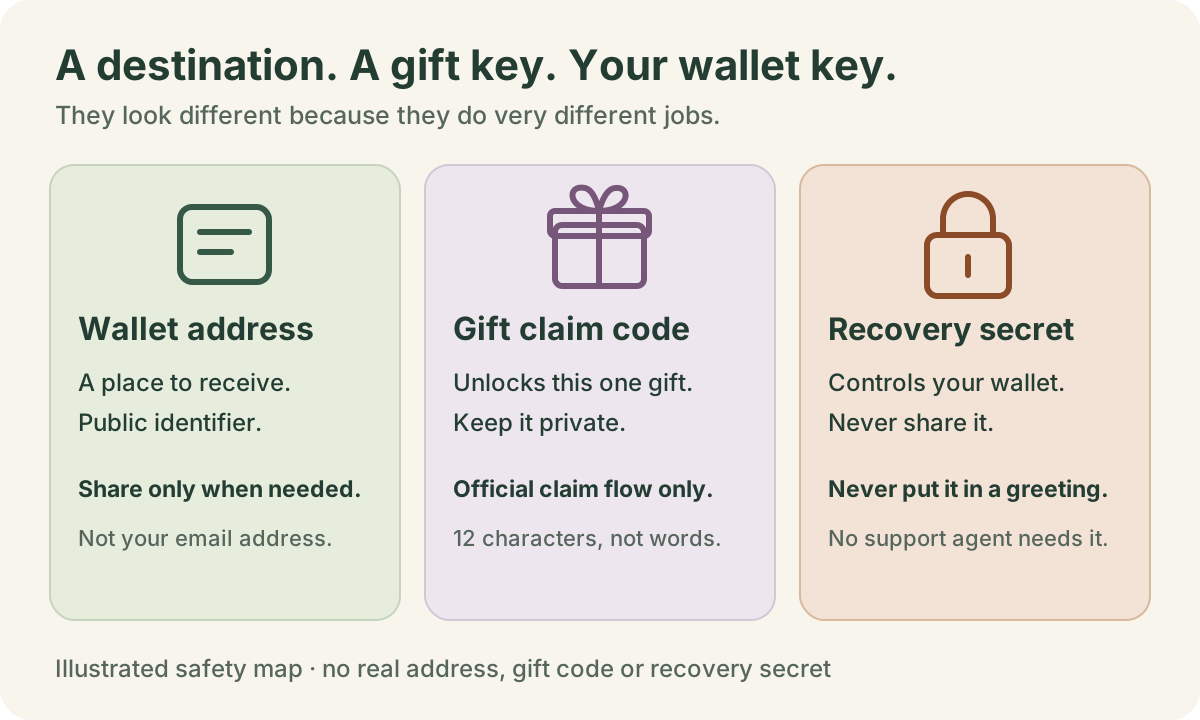
A wallet is an app that lets you control an address and approve transactions. The token balance is recorded on the network, rather than inside this greeting.
Official source: Jupiter’s plain-language wallet explanation ↗.
Step 3
On the phone where you want to receive the gift, open jup.ag/mobile. Use the download button there for your phone’s app store. Jupiter Mobile supports iOS and Android. Start from this official page rather than a search advertisement, a message from “support,” or a similarly named finance app.
Leave your greeting open, or return to its original email after installation. Installing the app alone does not claim anything.
Open the app you installed from Jupiter’s official source and check which wallet is selected. You can skip to Step 5. This guide follows the mobile path; a browser wallet extension is not required.
Official source: Jupiter Mobile downloads ↗.
Step 4
Open Jupiter Mobile and follow its own onboarding. Current official instructions describe two choices: a recovery phrase wallet or a Quick Account using a supported social login. Names and screen order can change with app version and phone type.
If you choose a recovery phrase wallet
If you have never owned a wallet, choose the app’s new-wallet or new-seed-phrase option. Do not choose Import unless you already have a wallet you intentionally want to bring into the official app.
Complete the backup instructions inside Jupiter Mobile. Write the recovery phrase down and keep it in a secure offline place. Do not photograph it or put it in a chat, cloud document or notes app.
If you choose a Quick Account
This account type does not have a recovery phrase. Protect the login you choose and read Jupiter’s current recovery instructions for that account type. You do not need to export a private key to claim this gift.
Use only the options offered by the official app. This guide does not ask you to change your existing wallet or transfer its secrets.
Keep your phone’s normal security protections on. If any setup choice is unclear, pause and ask someone you trust to explain it without showing them your secrets.
Official source: Jupiter Mobile account types and current setup instructions ↗.
Official source: Jupiter’s private-key and recovery-phrase safety guide ↗.
Step 5
Go back to the original email and open its greeting link again. Unwrap the greeting if needed. In its gift section, choose View private gift or View gift; then choose Claim gift in Jupiter. Button wording may vary as the site improves.
You are looking at a sample or the sender’s design preview. That screen has no claim button. Open the original recipient link from the email. A sender can find that private link in My greetings → Details; simply previewing the saved design is different.
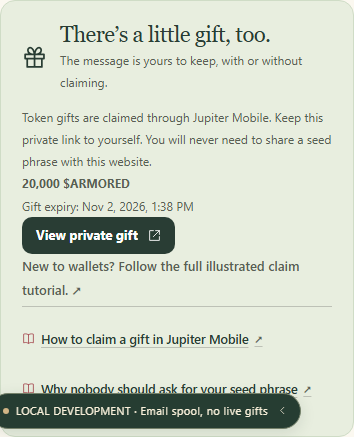
This guide is public and contains no personal gift. It cannot locate your email, create a claim code or claim for you. Never post the original private link in a public comment or community chat.
Step 6
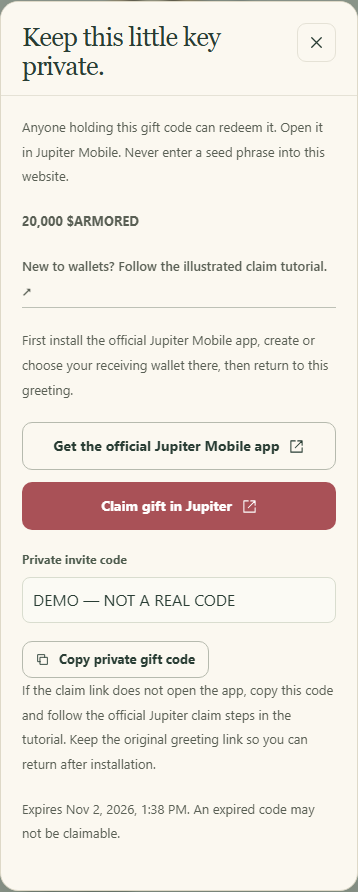
The gift code belongs only in the official gift-claim flow. It is still private: another person who has it may take the gift. Do not paste it into a search engine, support chat or this tutorial.
Open the same email on your own phone, or transfer the private greeting link to your own trusted device using a private channel you control. Then continue in Jupiter Mobile. Do not send it to a public group, paste it into a public QR service, or ask a stranger to claim it. An official Jupiter gift page may also show desktop-wallet options, but this walkthrough follows the mobile route.
Official source: Jupiter Mobile’s Magic Link claim instructions ↗.
Official source: Jupiter’s Magic Link handoff and troubleshooting ↗.
Step 7
Armored Kitten’s gifting service pins this Solana token mint (its token identifier):
Bq4iwaa2hGWweyCeM9ZNyWnZSj6pCMeUDKZgmtb5pumpUse the full identifier when comparing token details. Do not rely on a copied logo or ticker alone. You do not need to paste it into any payment form to unlock the gift.
Official source: Jupiter Mobile’s current fee explanation ↗.
Official source: Jupiter’s account switcher and wallet types ↗.
Step 8
After you approve in Jupiter Mobile, wait for the claim result. Pending or submitted is not yet confirmed. Do not repeatedly create a new gift or make a separate payment while an action is pending.
Keep the transaction reference if one is shown. Reopen the same claim or wallet history to check its state. A temporary delay does not justify a second transfer.
In the receiving account’s Home or Portfolio view, check the ARMORED token balance and the claim transaction. Check the token units even if a dollar value is unavailable.
The sender can refresh My greetings → Details for the verified claim status and its public transaction reference. If the wallet and website disagree, keep that reference and ask for a check rather than sending again.
A public transaction reference helps support trace a transfer. It is different from the private gift link or code. Give support only the minimum information they need, through an official channel.
Official source: Jupiter Mobile’s Home, Portfolio and History views ↗.
It is okay to pause
| What you see | What to do |
|---|---|
| Email missing | Search every folder, check the account and ask the sender to verify the full address. Do not create a replacement payment. |
| Preview only / no claim button | Return to the recipient link in the email. A saved-design preview has no funded claim. |
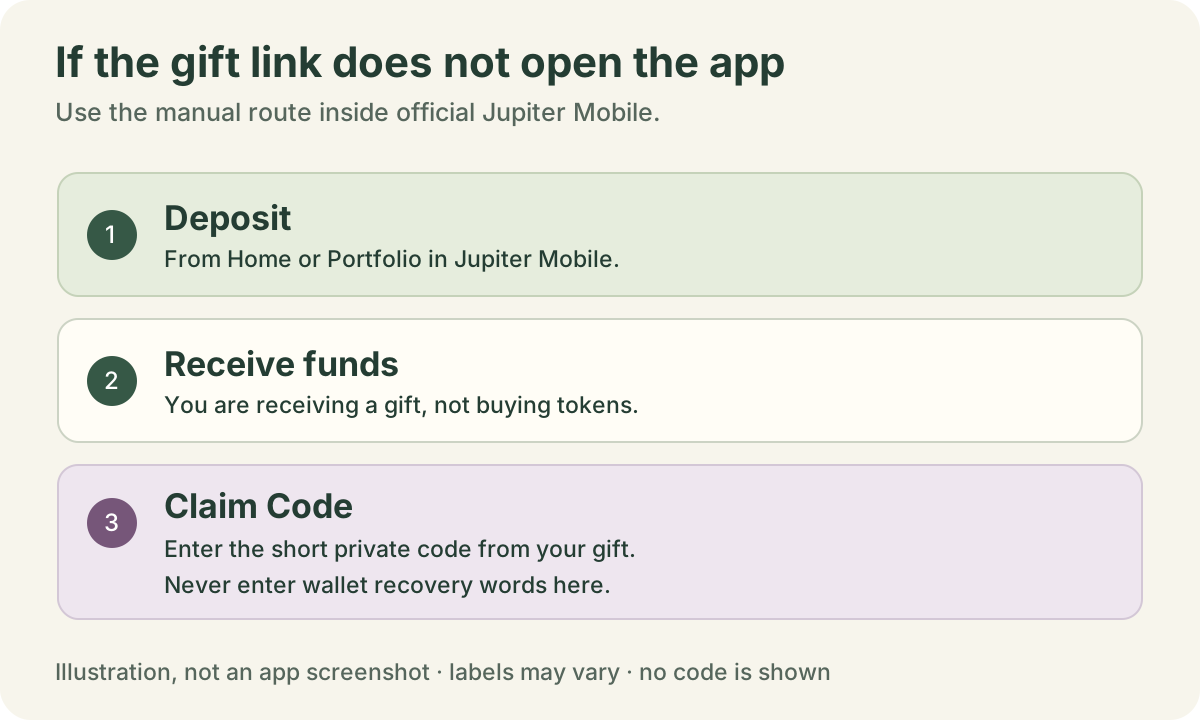
| App does not open | Finish app setup, tap the original link again, or use Deposit → Receive funds → Claim Code in the official app. |
| Already claimed / unavailable | Check whether you already received it in another selected wallet. Ask the sender to trace its public transaction. Do not pay to reactivate it. |
| Expired | The old claim may no longer be usable. Ask the sender to check its recovery status. An expiry label alone is not proof that tokens returned. |
| Gift could not load / not found | Check your connection and open the complete original link. If it still fails, use official support; never paste the private link into a public troubleshooting site. |
| Token has no dollar price | Check the token identifier and token units. Missing price data is not proof the claim failed or that the token is worth a guaranteed amount. |
| Sender sees price unavailable or minimum US$2 | That concerns creating a new gift. The sender must resolve it before sending; the recipient does not make a deposit to unlock an existing gift. |
| Wallet and website statuses disagree | Keep the public transaction reference and request a check. Do not claim success from a “submitted” label, and do not fund another gift to repair a status label. |
Official source: Jupiter’s documented claim-page errors ↗.
No. The token gift is optional. You can enjoy the message without setting up a wallet.
It is an ARMORED token gift on Solana. It is not a cash balance or a stablecoin. A displayed dollar estimate can move, disappear or differ between services. This guide does not recommend buying, selling or holding it.
Someone who gets the private claim link or code may be able to claim it. Keep it between you and the sender. If it was shared by mistake, contact the sender promptly; an unclaimed gift may be recoverable by its sender, but an already-completed claim cannot be reversed by this website.
This gift-claim walkthrough does not require opening an exchange account or buying anything. Use only the official app’s receiving flow and review any genuine transaction costs there. Do not confuse a buy/deposit screen or a separate paid product with claiming this gift.
Recovery depends on the wallet type and the backup you made. Do not reset or remove a wallet until you understand its recovery method. Follow Jupiter’s official account-recovery instructions; Armored Kitten cannot recover a wallet from your email address.
Do not send support your private gift code, recovery phrase, private key or login code. Support can help explain a status or trace a public transaction; it does not need control of your wallet.
These checkboxes are for your own reading. This checklist does not submit anything or save to your account. Use your browser’s Print command if you want a paper copy.
For the greeting page or delivery status, contact the Armored Kitten address published by this site: support@stonkbuilder.com.
For Jupiter Mobile setup, account access or its claim screen, use Jupiter’s official Support Hub ↗. You can also reach support through the official app’s Help & Support menu. Do not trust a direct message claiming to be support just because its profile has a logo.
Share a short description, the error text and—if relevant—a public transaction reference. Keep private links, codes and wallet recovery material out of screenshots and tickets.
Jupiter instructions checked on . App names, menu positions and supported methods may change. Use the current official instructions if your screen differs.
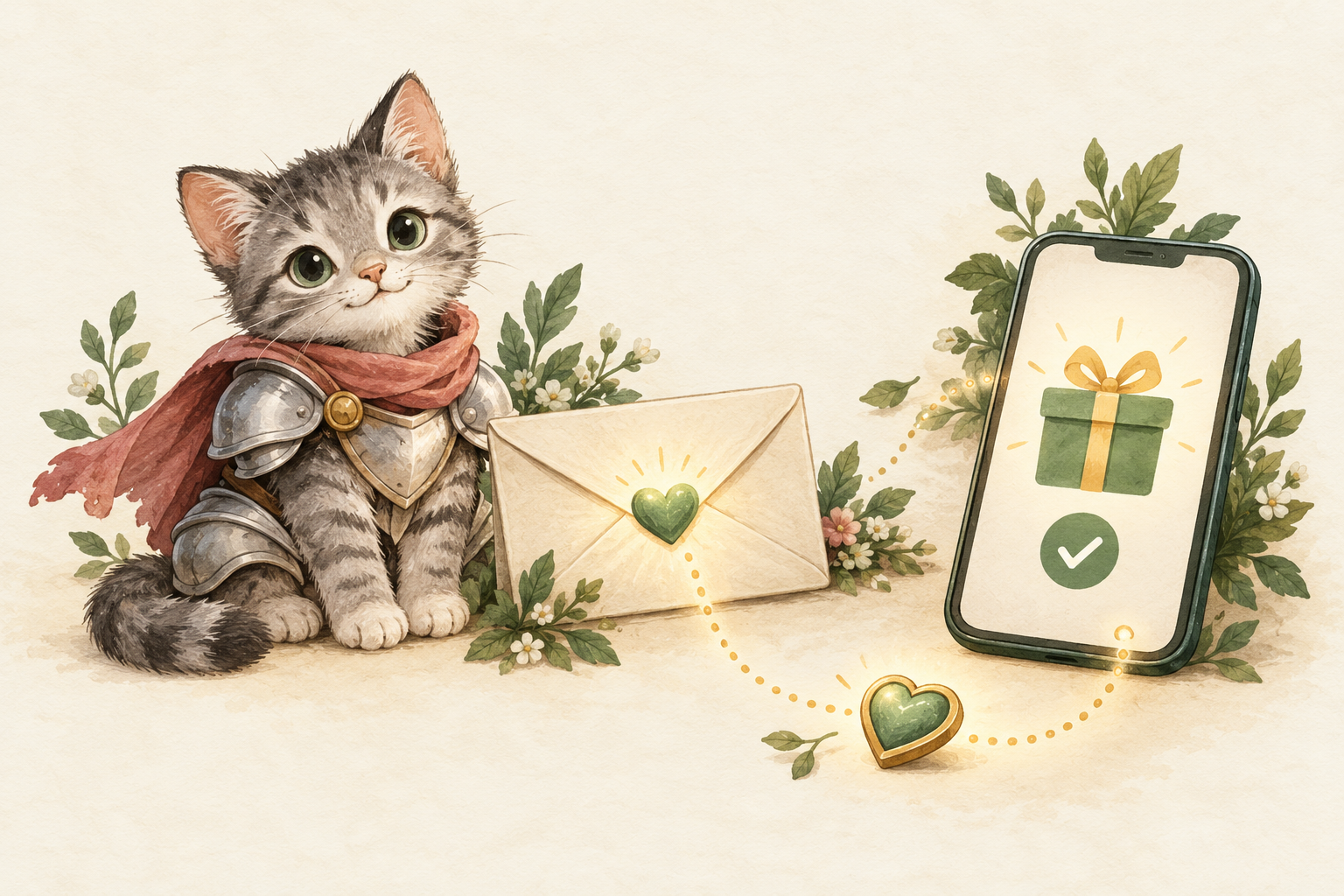
The kitten artwork is an AI-generated educational illustration. The diagrams are explanatory drawings, not Jupiter screenshots or promises of a particular app layout. The two demo screenshots show the actual Armored Kitten website using synthetic test data; they are not Jupiter app screenshots. No real private link, QR code, recovery phrase or gift code appears in this guide. This version is written in English. Other-language versions require their own review.