
Skip to tutorial
Armored KittenArmored Kitten
Dashboard guide
English implementation preview · 3 November 2026Open dashboard

YOUR PRIVATE COMPANION

Your dashboard, one step at a time

A visual guide to planning your day, checking progress and finding your companion tools.

01 · home

Start with your day at a glance

Home brings your next steps, recorded progress, workout plans and upcoming dates together.

  1. Open the dashboard from the Armored Kitten bot inside Telegram. Your existing companion account supplies your saved information.
  2. Look at today’s task ring and Your next steps. Tap the check beside a task when you have completed it.
  3. Your week at a glance shows the next seven days. Dark dots are calendar items and amber dots are planned workouts; titles stay in the day view. Tap a day to open it in Schedule.
  4. In the bot, /today sends a live Today card with your checklist, next calendar item, habits due and today’s workout. Tick tasks on the card and it updates in place. Pin card keeps it at the top of the chat and keeps it in step with changes you save here. Open dashboard brings you back.
  5. Use Add task, Add expense, Log workout or Log habit to reach the relevant tool. A shortcut opens a form; it does not save a record on its own.
  6. Make a greeting opens the Greeting Studio website from Telegram. Greetings use a separate email sign-in on the website; your Telegram account is not linked to it. You can choose to link it under My greetings in the Greetings card.
  7. Choose Show amounts only when you want financial totals visible. Hide amounts puts them out of view again.
  8. Upcoming dates lists birthdays and anniversaries already saved in your calendar for the next two weeks, each with Make a greeting. Your week so far counts only recorded tasks, Done reports on planned habit days since each habit started, and this week’s workouts, from Monday to today; /week in the bot shows the same counts.
  9. Your daily tutorials gives you three short lessons each local day. Open a lesson, then choose Already read, or Don’t remind me again if you do not need it. Either way that lesson is not sent again. Unread lessons return on later days. The ring beside it shows how many tutorials you have read.
  10. In the English preview, choose one easy three-day goal from the optional Home tiles. Preview it first, confirm your shared time zone if asked, then choose Start three days. Not now skips setup; Write a custom goal opens your existing private Goals editor.
  11. The starter progress bar counts only steps you mark Done. Skip and Undo report correct your saved report; unreported days remain unknown. The bot /starter and this dashboard share the same goal, dates and reports. Pause plan keeps the goal, while Start fresh pauses the previous active starter and keeps it in Goals.
  12. Optional starter feedback and separate research contact permission are in More. You can withdraw permission or delete feedback there or with /starter privacy, even after a language or access change. Starting a goal enables no new automatic messages. Existing schedules use your shared time zone.

The ring counts saved task completions. A dash in the week chart means no recorded tasks. It is not a failed day or a personal score.

Start with your day at a glance in the sample dashboard

02 · plan

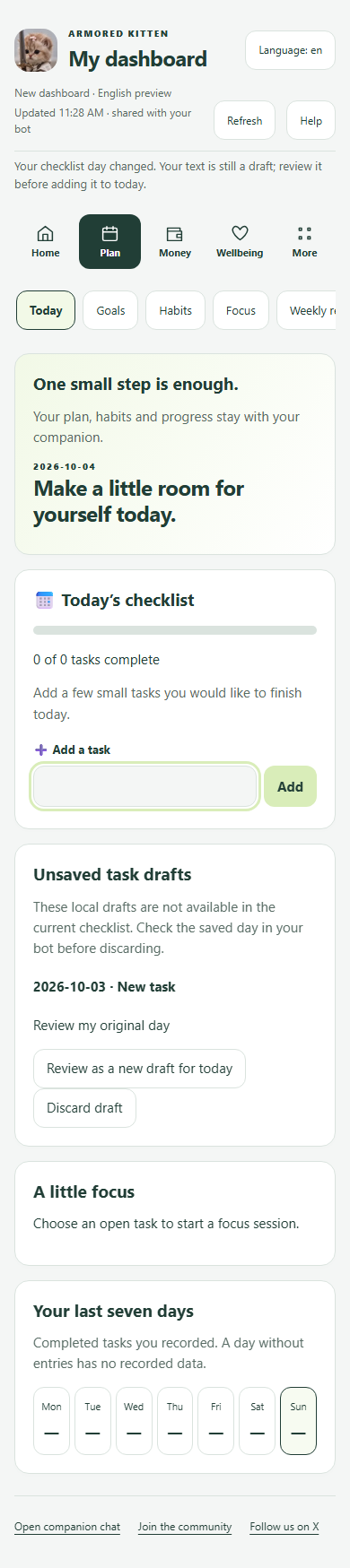
Make a manageable daily plan

Plan → Today uses the same checklist as your bot conversation.

  1. Choose Plan, then Today, or use Add task on Home.
  2. Type a short task and press Add. Wait for the saved confirmation.
  3. In English, choose Get my first win in the bot welcome or First Win in Planning Tools. Save the suggested task to Today when you are ready, then check it off in either place.
  4. If you type more text while a save is pending, the earlier save does not submit or erase your newer draft. Save the newer text only when you choose to.
  5. Use Done to complete a task and Reopen if you need to return it to the checklist.
  6. The bot’s /today card shows the same tasks. Tick a task in either place; a pinned Today card in the chat updates when you save here.
  7. Open Edit task to change its title. If the bot has a newer version, review that version before saving your draft.
  8. When available, choose a short focus session for an open task. Finishing a timer does not mark the task complete.
  9. If an add has an unknown result, choose Check saved tasks and check your bot before discarding local text. An uncertain edit retries only the earlier submitted text, even if you have typed a newer draft.
  10. Retry previous save checks only its original text, day and save request. Newer text stays unsaved. Discarding local text never deletes a saved task.
  11. When the day changes, an unsaved task stays with its original day. In Unsaved task drafts, confirm an uncertain original save first. Review as a new draft for today preserves the text for your review; press Add only when you want a new task today.

Draft text stays in this private session while you use supported tools and Help. Closing warnings are best effort. Closing, disconnecting or losing access clears private drafts. Discard draft removes local text; it does not cancel an earlier save or delete a saved task. Drafts from an earlier day or a removed task stay available for local recovery. Changing the companion account also clears every previous-account draft. Original save receipts are retained for seven days; an older uncertain save may need checking in the bot.
Make a manageable daily plan in the sample dashboard

03 · plan

Follow your goals and next steps

Plan → Goals manages the same goals and steps as your bot, including paused, completed and archived goals.

  1. Choose Plan, then Goals. Select New goal to enter a title, optional reason and target timing.
  2. Use Show goals to switch between active, paused, completed, archived or all goals. Manage opens the full goal; More goals and More steps continue through saved history.
  3. Edit the goal or its steps, add a step, or choose Pause, Resume, Complete or Archive. Completing a goal does not automatically complete its steps.
  4. Choose Done, Reopen or Skip to record step progress. Add to Today copies an open step into your current local-day checklist; that task stays independent.
  5. If chat changed a record, keep your input and review the latest saved version before saving again. For an uncertain response, retry the same save or cancel it safely.

Progress counts every saved step, including history beyond the current page. Removing or completing a step keeps a task already copied into Today unchanged. Target timing accepts the wording saved in chat. This remains a local English preview until release acceptance.

Follow your goals and next steps in the sample dashboard

04 · plan

Imagine a future and choose one small step

Manifest connects a written imagined scene to your existing goal and Today checklist.

  1. Tap ✨ Manifest in the bot menu, send /manifest, or choose Plan → Manifest in the private dashboard. Manifest is open to every account; its screens are in English for now.
  2. Choose an existing active goal and confirm your journey. Edit your aspiration, detail and tone in the dashboard.
  3. Write a short imagined scene and up to three believable affirmations. Choose a small action, estimated minutes and, if useful, an obstacle and a response. Review before saving.
  4. Review today’s action, then confirm Add to Today. Writing a scene does not create or complete a task. The same checklist appears in your bot and dashboard.
  5. Use Done or Reopen for the actual task. Record an accomplishment separately when you want to describe something you did; that personal report does not complete a task.
  6. Select accomplishments for a written weekly chapter. A recap uses the reports you selected. Editing, deleting or reopening a source removes a recap that no longer matches. Use Edit chapter to revise your next-step intention or explicitly reselect accomplishments. The existing sources stay selected until you change them. The saved chapter keeps its original 30-day expiry. In the bot, Weekly chapter then Edit chapter changes only your next-step text and asks you to confirm Save.
  7. Use Pause, export or Delete Manifest content when you need them. Deleting Manifest content preserves your existing Goals and Today tasks.

Pictures in this guide use sample records. No audio is needed. Scenes are imagined possibilities; accomplishments are personal reports. Scenes and recaps expire after 30 days and reports after 90 days. Optional AI text is not available yet, so you write your own scene. Manifest screens are in English for now.

Imagine a future and choose one small step in the sample dashboard

05 · plan

Check in on small habits

Plan → Habits manages the same routines, planned weekdays and dated self-reports as your companion chat.

  1. Choose Plan, then Habits. Add a habit with a short title and one or more planned check-in days.
  2. Use Done or Not today to record today’s self-report. A rest day can still have an optional report; no report is recorded automatically.
  3. Each habit card shows the last seven days, oldest first: a filled dot is Done, an open dot is Not today, a dotted circle has no report and a small dot is a rest day. The flame counts your current run of Done days, up to 60 days back; rest days do not break it. /habit in the bot shows the same strip.
  4. Open Manage habit to edit its title or weekdays, pause/resume it, or review its dated history. Changing planned weekdays does not rewrite past reports.
  5. Edit today’s report and note to correct the status or add, replace or clear an optional private note. Quick Done/Not today buttons preserve an existing note.
  6. Use Older habit history and Newer habit history to browse recorded dates. Delete habit and its history asks before removing both.
  7. For chat, use /habit and /habit days <id> mon,wed,fri. Routine topic controls in More and your existing automatic-message choices still apply.

Missing reports are unknown, not failed days. Notes are shown in the selected habit’s private history, not Home cards. Choosing planned weekdays does not turn on reminders or messages. This is a local English preview; release and language acceptance remain open.

Check in on small habits in the sample dashboard

06 · plan

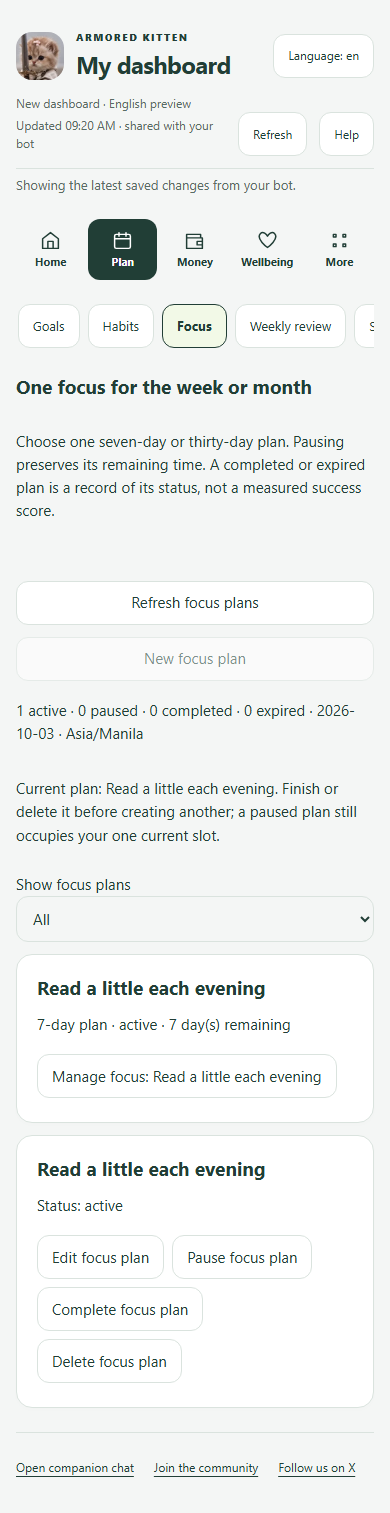
Choose one focus for your week or month

Plan → Focus manages the same seven-day and thirty-day focus plans as your private bot.

  1. Choose Plan, then Focus. New focus plan accepts a title and a seven-day or thirty-day duration.
  2. Open Manage focus to pause, resume, complete or delete your plan. A paused plan keeps its remaining time and still occupies your one current plan slot.
  3. Edit focus plan lets you change the title and duration. Saving an edit restarts the full selected duration; a paused plan stays paused.
  4. Use Show focus plans to browse active, paused, completed, expired or all plans. More focus plans opens older saved records beyond the current page.
  5. When chat changes a plan, retain your input and review its latest version before saving. For an uncertain response, retry the same focus save or cancel it safely.

Elapsed active plans expire automatically. Completing a plan records your choice, not measured results. Checklist tasks, short focus sessions and reminders stay separate. No reminder is enabled here. Local English preview; release and language acceptance remain open.
Choose one focus for your week or month in the sample dashboard

07 · plan

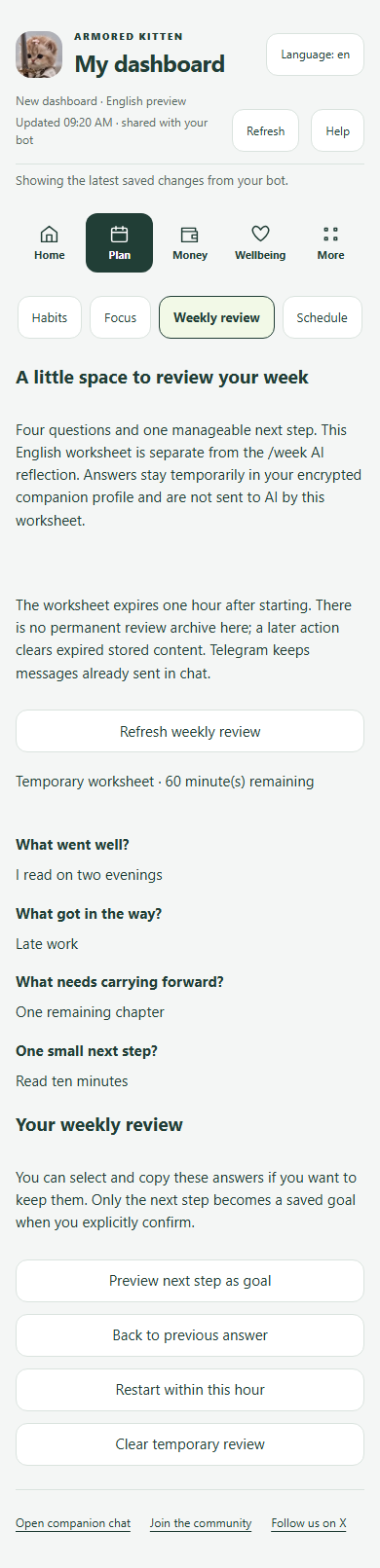
Review your week and choose a next step

Plan → Weekly review continues the same temporary four-question worksheet as /review in your private chat.

  1. Choose Plan, then Weekly review. Start weekly review opens a one-hour worksheet; finish or cancel another chat setup first if one is already open.
  2. Answer one question at a time, or choose Skip this question. The saved answers appear above the current prompt and also continue from chat.
  3. Back to previous answer edits the last saved response. Restart within this hour discards the current answers while keeping the original expiry.
  4. After four answers, Preview next step as goal shows the exact text and explains its use by existing companion AI features. Only Confirm and add goal creates it; no reminder is scheduled.
  5. Chat edits invalidate an older dashboard save. Review the current question before applying retained input. Retry an uncertain goal confirmation or cancel it safely to find out whether it already saved.
  6. Clear temporary review removes the saved worksheet. Expiry hides answers and unsaved input; a later action clears expired stored content. Open Goals manages a step you explicitly saved.
  7. If an answer suggests you may harm yourself, the worksheet is cleared. Your companion replies in your Telegram chat with urgent-help options, and the dashboard shows them as well.

This worksheet does not send answers to AI or create a permanent review history. Telegram keeps messages already sent in chat. /week remains a separate AI reflection. Local English preview; release, privacy and language acceptance remain open.
Review your week and choose a next step in the sample dashboard

08 · plan

Plan and manage your calendar

Plan → Schedule brings Today, Week and Month cards, planning actions and shared reminders together.

  1. Choose Plan, then Schedule, or View schedule on Home. Choose Today, Week or Month. Choose a date or use Previous and Next to move through the current view; Week runs Monday to Sunday.
  2. In the English Calendar preview, /calendar opens Today, /calendar week opens Week and /calendar month opens Month as PNG cards with a text summary and working buttons. Open calendar in app keeps the selected date and view in your private Mini App. Use /calendar help for command instructions.
  3. The card shows Calendar reminders, available Gym visits, open Today tasks and generic planned meal slots. Schedule as text opens the full readable list; choose an item there to manage it in its owning tool. The PNG itself is a summary: choose a date with the date field rather than tapping a printed date in the image.
  4. If your calendar is empty, choose Add a reminder. The date is filled in. Try a short title such as Call Sam, choose 15:00, then review and confirm the reminder. In the bot, Add reminder opens the existing reply prompt for the selected date. Remind me to plan tonight opens a Plan tomorrow reminder draft; review it before saving.
  5. Find 25 minutes starts with an open task from Today. Choose a suggested gap in your Armored Kitten schedule, review its date, time and time zone, then confirm. More times shows additional suggestions. Saving creates one Calendar focus block linked to the same task; it does not create another task or mark it done.
  6. Plan next week opens a draft for next Monday to Sunday. Choose which open tasks to move and meal slots to copy, adjust their dates, then save the selected items. Opening the draft saves nothing. Existing Gym plans are reviewed in Gym. If a save is unconfirmed, retry the same save; already saved items stay saved.
  7. Open the selected date in Diary when it is today or earlier. The existing private Diary editor opens on that date; opening it does not create a note. Write your own note and choose Save diary note when you are ready.
  8. Schedule Today is on by default and can send a morning Today card even when nothing is planned. Open Schedule Today settings here or in More to turn it off or change Morning delivery time. The Bot and Mini App share the choice. Changing this time also changes Daily Companion morning time. Global Stop, Pause, quiet hours and delivery limits still apply.
  9. Under Manage calendar reminders, enter a title, repetition, date or weekday and time. Review the saved time zone and single-reminder or whole-series scope before confirming. Saving schedules private reminders through the same bot; global Stop and saved delivery choices still apply.
  10. Use Manage reminder in the selected-day agenda or Edit reminder in the saved list. Pause, Resume and Remove update the same records as chat and apply to the whole series.
  11. For a recurring Calendar reminder, choose Change scope → One occurrence. Select its original occurrence date, then Move this occurrence, Skip this occurrence or Restore the series time. Review the saved time zone before confirming. Other dates stay unchanged; dated exceptions keep their explicit dates and times when the series is edited.
  12. A moved occurrence keeps its original delivery identity. Already attempted occurrences cannot be rewritten; Restore requires a future original time. The bot offers the same reviewed changes through /calendar move, /calendar skip and /calendar restore.
  13. If a record or time zone changed, choose Review current reminder. Review its saved version before using that version for your draft and submitting a new save. Discard calendar draft clears a conflicted draft.
  14. If the save response is unconfirmed, Retry calendar save reuses the same request. A confirmed save followed by a failed read needs Reload calendar records, not a second new save.
  15. Meals reminder changes apply to the whole weekly series. Fitness reminders stay under Fitness. Private Mood reminders stay in Mood & Support. Use Calendar in your private chat when you prefer the existing bot controls.
  16. Use Tab to reach the view buttons, date field, planning actions and Schedule as text. Enter or Space activates a focused button. The date field follows your device's keyboard controls. Help preserves an unfinished form.
  17. Open Diary at the top of Schedule, or use the shortcut in Today. Add today’s note, or choose an earlier date. History & search lists saved entries, finds a phrase, and filters by date. In Telegram, use /diary add to capture a note and Find diary notes about followed by a phrase to get a quoted match with an Open entry button. The daily 8 p.m. check-in uses your saved time zone or UTC until you change it. Use Evening check-in settings to change the zone or turn it off.
  18. Open a Diary date and choose Writing prompts. Remember a moment offers an illustration and a short starter; open the optional follow-up for another question. In the bot, open Writing prompts from /diary. The moment illustration respects your Bot visual preference and safety pause; its full text remains available. Save your own note using the existing Diary editor or /diary add. Open Manifest appears for accounts with access.

These signed sample screens show the local English Calendar PNG candidate; combined integration, source review and release are pending. Existing non-English manual Calendar cards keep their localized presenters while the new labels are reviewed. All-day calendar entries are not implemented yet. A reminder and a workout are separate records. Suggested gaps use known Armored Kitten records, not outside calendars, and do not guarantee that you are free. Diary, Mood, Money amounts and private meal details stay out of PNG cards. Editing a reminder does not reschedule an outside appointment.

Plan and manage your calendar in the sample dashboard

09 · wellbeing

Plan workouts and record what you did

Wellbeing → Fitness opens the shared Fitness dashboard.

  1. Choose Wellbeing, then Fitness, or Log workout on Home. In the bot, Set up or edit your plan opens the plan editor directly.
  2. For a workout suggestion, tap Gym recommendation in /fitness or on Mini App Home. It opens a draft using your recent saved routine or the English starter when available. Enter the minutes and any sets you completed, then tap Save workout. Opening the draft adds nothing to your history.
  3. Review your training days, local time, weekly goal and reminder choice before saving a plan.
  4. Record a completed, shorter, rest or rescheduled day through the check-in controls.
  5. In /fitness or on the daily Telegram card, tap Log a workout and pick a duration to save it to the same dashboard. Open the Mini App workout editor to record exercises and sets.
  6. The daily Fitness card is sent after 5 p.m. in your time zone when Telegram messages are on. Tap Opt out on the card or change Daily Fitness card in the Mini App under Wellbeing → Fitness. Scheduled visit reminders have their own setting.
  7. To get visit reminders, turn them on in your Fitness plan and save. You can turn them off in the same plan. If you add recovery windows, choose and confirm a suggested time before the visit moves in Calendar.
  8. Use routines and workout details when you want to save actual sets, repetitions or weights. Previous numbers are references, not completed work. Track sets appears before you add exercise rows and lists the sets from a chosen routine. Enter kilograms (0 for bodyweight), then mark each set done as you finish it; only sets marked done are saved. In the Mini App, unsaved sets stay for up to 3 hours while you switch apps; closing the Mini App discards them.
  9. Progress shows the last 8 weeks of active days and minutes from what you recorded. An active day has a completed or shorter check-in or a saved workout; minutes come from saved workouts. Rest days are not counted as activity.
  10. Save or explicitly discard outstanding Fitness edits before leaving a section when the dashboard asks.

Rest and shorter sessions remain neutral choices. Attendance reports do not invent a detailed workout. Earned Fitness cosmetics are separate from money or token rewards.

Plan workouts and record what you did in the sample dashboard

10 · wellbeing

Plan meals and keep one grocery list

Meals keeps quick ideas, your weekly plan and groceries together with your existing companion account.

  1. Open Wellbeing → Fitness → Meals, or use /meals in the companion chat. Start with a quick, simple idea; a suggestion stays a suggestion until you choose Add.
  2. Choose today or another day, select a meal slot and save once. If that slot already has a meal, review the replacement before confirming. The bot and Mini App use the same saved plan.
  3. In /meals, tap Add next to an empty meal slot. From the daily card, tap Add a meal and choose the slot. Reply to its prompt, or type the meal name normally and review the destination before Save as meal. Optional ingredients follow a colon, such as Rice bowl: rice, tofu, carrots.
  4. If “lunch 200” could mean either a meal or an expense, choose Save as meal or Review as expense. A clear “spent 200 on lunch” goes to a Money review. Staged meal input remains private and is not sent to general chat AI; an expired or changed prompt asks you to reopen it.
  5. The daily Meals card is sent after noon in your time zone when Telegram messages are on. Tap Opt out on the card or change Daily Meals card in the Mini App under Wellbeing → Fitness. The weekly planning reminder has its own setting.
  6. Open Groceries to review ingredients from the saved plan, check items as you shop or add a manual item. Counts show how often an ingredient appears, not how much to buy.
  7. After saving a meal, tap Estimate calories. You can estimate this meal, allow future lookups, or choose Not now. Typed calories and sourced estimates stay separate.
  8. If you allow future lookups, saving a new or changed meal can start one. When USDA finds matches and Telegram sends a notice, tap View matches. Choose the food and confirm a portion. The estimate shows its source and the date it was checked.
  9. Tap BMI and weight goal in Telegram or the Meals Mini App. Adults 20 and older can enter height, weight and an optional goal weight. These entries stay on the calculator screen.
  10. Use Settings to change the calorie view or research choices, remove calorie data, and manage the weekly planning reminder. Turning automatic research off cancels pending lookups but keeps completed estimates.

These screens use a sample account. Meal research is off until it is switched on, and your plan and groceries work without it. Estimates are not nutrition advice, and Meals does not set targets or give diet advice.

Plan meals and keep one grocery list in the sample dashboard

11 · money

Record and manage your Money

Start with one expense in the private Mini App or chat, then manage the same saved ledger on either surface.

  1. Open Money. Log an expense is at the top; the overview and advanced workspace remain below.
  2. Enter the amount, check the visible currency and choose a category. USD remains the automatic default until you choose another currency; selecting a currency here changes only this entry.
  3. Open Add a note or change date if needed. Otherwise the entry uses today in your saved Money time zone. If the date is left empty, Review expense opens this section and asks you to choose a date.
  4. Tap Review expense, check the amount, currency, category and date, then confirm. Cancelling saves nothing. A successful save clears the accepted draft.
  5. In chat, tap Add expense or type 120 lunch. For another label, write spent 120 on medicine, replacing medicine with your expense. Check the currency in the prompt and review card, then tap Save. The bot asks what the expense was for if you send only an amount.
  6. For income in chat, tap Add income in chat and start your reply with received, for example received 3500 from salary. If you send only an amount or a short reply such as 3500 salary, the bot shows the wording to send instead. Nothing is saved until you tap Save on the review card.
  7. The saved entry appears in the same Money history on both surfaces. A clear success message confirms the save. If the response was lost, use Retry the same save to confirm the original attempt without another entry.
  8. Under Income & expenses, choose Expense or Income, enter the amount, currency code, category and date, then choose Review entry. Each form can use a different currency without changing your account default. Check the details before confirming the save.
  9. Open Budgets or Bills, income plans, savings & IOUs to manage your records. Expected income and unpaid bills remain plans until you explicitly record receipt or payment.
  10. Transfers stay separate from income and spending. The shared-expense tool calculates shares first; only Record my share as an expense writes a ledger entry.
  11. For a receipt, select an image, explicitly allow server-side text recognition and review every field before saving. Withdrawing permission or changing the file cancels an unfinished reading attempt.
  12. Open History, CSV export & import to filter entries, correct or delete a record, record a refund, download a CSV or preview up to 100 import rows. Keep the Text Encoding column when re-importing an Armored Kitten export so spreadsheet-safe text and leading apostrophes can be restored.
  13. If a save response is unconfirmed, use Retry the same save. Its original details stay locked and other drafts remain. Retrying a settings save does not reapply an older choice over a newer opt-out. If a confirmed save could not refresh, use Refresh Money instead of entering it again.
  14. If Money changed while you were editing, choose Review current Money settings. Check the current records, keep your draft with the reviewed settings and submit a new save only if you still want the change. Discard Money drafts clears a conflicted draft. Deleting and restarting Money clears older private drafts and requests.
  15. Money settings keep reminders and the financial assistant as separate choices. Read the disclosures before enabling either. Save or explicitly discard drafts before leaving the workspace.
  16. When Money tracking is off, use Download saved records as CSV to export retained entries and transfers. You do not need to resume tracking or change reminder or assistant settings.
  17. A clear Money message can interrupt an unfinished task, habit, focus or meal input without saving into that form. Its draft stays available. Money that you turned off stays off until you resume it.
  18. If access cannot be checked, the bot and dashboard say temporarily unavailable. Nothing is saved by that failed attempt; retry after access returns. A Plus offer is shown for a confirmed membership requirement, not a service recovery. Export and deletion remain available.

English sample screens use disposable local records over signed loopback HTTP with a simulated Telegram SDK. They do not prove native Telegram acceptance or production delivery. Show amounts only hides the overview card; forms, receipts and expanded history can show private details. This lesson stays outside daily automatic tutorials until its compatible release and required reviews are complete.

Record and manage your Money in the sample dashboard

12 · wellbeing

Choose whether to use Mood and Support

Wellbeing → Mood & Support has separate controls for optional saved check-ins and activity plans.

  1. Choose Wellbeing, then Mood & Support.
  2. Read the saving choices before giving consent. General information and saved tracking are distinct.
  3. If you choose tracking, use the check-in and activity controls that are available for your account.
  4. Review pause, retention and deletion controls before changing how records are kept.
  5. Use Find human support for local support lines. Urgent-help options appear when you need them: if you tell the bot, or answer a weekly review, in a way that suggests you may harm yourself, your companion replies in your Telegram chat.

Mood entries are self-reports, not a diagnosis. This feature remains a preview with qualified content, privacy, language and device reviews outstanding.

Choose whether to use Mood and Support in the sample dashboard

13 · more

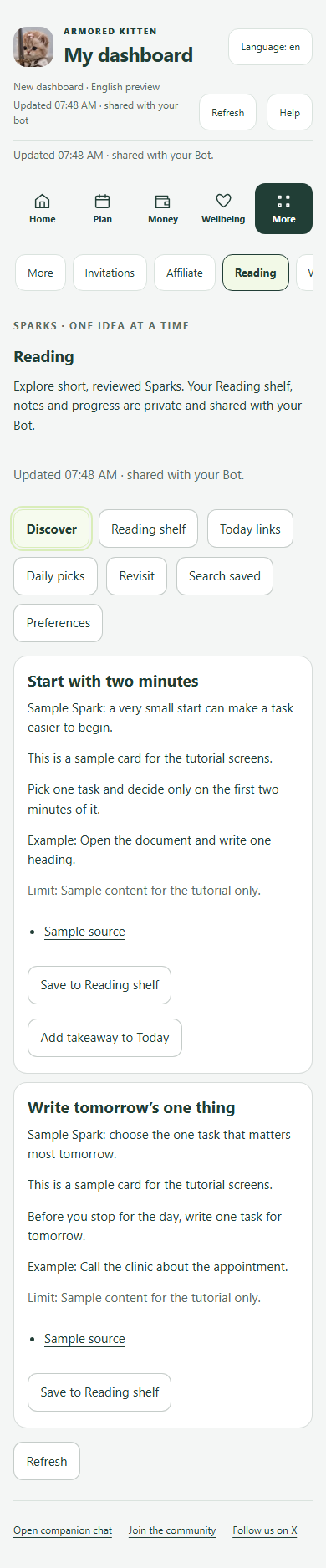
Explore Kitten Sparks and keep a Reading shelf

Kitten Sparks are short reviewed ideas. Save the ones you like to a private Reading shelf that your bot and dashboard share.

  1. Open Home → Kitten Sparks → Open Kitten Sparks, or More → Reading. In the companion chat, send /sparks.
  2. Discover shows short reviewed Sparks. Open one to read the idea, an example and its limits, with sources at the bottom.
  3. Save a Spark to your Reading shelf. The shelf is private to your account and the same in your bot and dashboard.
  4. When a Spark suggests a step, you can review it and add it to Today. Reading or saving a Spark never creates a task by itself.
  5. Daily picks and Revisit bring back a few saved ideas, and Search saved finds them again. Preferences lets you pause learning or clear your Reading data.
  6. Kitten Sparks is open to every account once you confirm you are 18 or older in your bot.

These screens use sample Spark records, not your live data. Sample Sparks make no real-world claim.
Explore Kitten Sparks and keep a Reading shelf in the sample dashboard

14 · account

Set the pace and find more tools

More brings reminder and topic controls together with clear companion-chat handoffs.

  1. Choose Connect wallet under Wallet & ARMORED. Open the verification page in your Solana wallet and sign the message; no token transfer is requested. Return and refresh wallet status. Check ARMORED balance uses the same linked wallet and server checks as the bot. Amounts show their last check time; unavailable or old results are labelled. In the bot, Settings has the same connection and balance-check shortcuts. These sample screens do not verify a real wallet or native Telegram connection.
  2. Choose More to review checklist reminders and automatic messages.
  3. Use the topic controls to pause or enable the support topics you want.
  4. Choose Wallet Quest in More to take the English wallet and gifting knowledge checks. Free accounts can learn and save progress. A first qualifying pass may earn Kitten Points under the existing account eligibility and daily learning limits; a pass does not guarantee points. Public practice never changes your private progress or points.
  5. Choose Open invitations to use the shared invitation form. Confirm your own email with a fresh OTP, enter your name and your friend’s email, then review before Send invitation. The preview shows your verified email as CC. Opening this screen or preview sends no invitation.
  6. Invitation history, your referral link and counts use the same bot account. Invitation sending does not require holder or model access. A lost response needs Check invitation status; a changed bot step needs explicit review. Discard unsent invitation input clears only text you have not saved.
  7. Greetings has one-tap buttons (Birthday, Thank you, Thinking of you, Congrats) that open that Greeting Studio template directly, plus More designs and How to make a greeting. The weekly greeting reminder switch uses the same setting as /greet in your bot chat; reminders arrive in your bot language and only while automatic messages are on. The card also lists birthdays and anniversaries from your calendar for the next two weeks. My greetings lets you link your Studio account by typing its email and the code the Studio emails you; it then shows names, headlines and delivery status only, opens your postbox and can be unlinked. Linking never signs you in to the Studio.
  8. How to claim a gift (English) opens a public beginner guide and needs no linked account. A linked account shows gift status and a verified public claim transaction when available. Gift claim notices start off; explicitly turn them on here or in /greet, and turn them off in either place. They follow shared Stop, Pause, quiet hours and account access. Old claims are not backfilled, and uncertain deliveries are not automatically repeated. Studio email claim notices have their own default-off setting.
  9. Use the labelled handoffs for stories, account usage, privacy and exports while those dashboard integrations are completed.
  10. Copy a command, open your bot chat and send it yourself when a handoff asks you to. Opening a handoff does not send a message.
  11. Choose Help from the dashboard whenever you want to return to this guide.
  12. Your daily tutorials sends three lessons per local day by default; you can choose four or five, or pause them. A new pace applies to the next batch. Existing feature-tip permission and global Stop still control automatic messages.
  13. Greeting Points are a separate choice after linking. When available, Enable greeting Points counts only independently verified recipient feedback. Sending, opening and unverified replies earn nothing. The website creator uses Choose a moment, Make it personal, then Preview and send; photos, voice, seals and gifts are optional. Current eligible companion accounts can see cosmetic milestones; inactive or hidden Points stay quiet. This is a local implementation preview, not a live activation notice.
  14. Choose Open affiliate dashboard in More to get your personal referral link instantly, then Copy link or Share in Telegram. The Telegram affiliate option opens Telegram Earn Stars: join Armored Kitten, copy your Telegram link, and paste and save it once in your private dashboard. Custom rewards are reviewed manually after your friend’s first monthly payment and the configured review delay; Telegram affiliate referrals are excluded from custom payouts. Signing up alone earns no reward.
  15. Gift Plus sender rewards are a local preview. From More, open Plus membership to see sent and received gifts, gift end dates and 0/2 reward progress. Gift 1, 3, 6 or 12 months in the Greeting Studio and pay in Telegram. A gift never renews or charges its recipient. The sender may receive 50% of up to two paid monthly Stars subscriptions in the 60 days immediately after the gifted period ends, subject to refund, duplicate-payment and affiliate checks. Longer gifts do not increase the two-payment reward limit. Rewards require manual review and transfer; no earnings or full gift-cost recovery are guaranteed.
  16. When group cards are enabled after linking My greetings, choose Create a group card or My group cards and contributions. The Studio workspace may ask for its separate email code. Open in browser continues to the same saved card when the embedded view cannot keep your sign-in; unfinished input stays in the current view. This sample More screen shows an unlinked account, so linked group controls are not pictured.

The same saved opt-outs and access rules apply to both interfaces. New feature integration and export coverage are still being checked before release.

Set the pace and find more tools in the sample dashboard

15 · plan

Plan groceries, a first step, paydays and shifts

Planning tools are four English worksheets. Each one builds a preview for you to review; a preview does not change your records.

  1. Open More → Planning tools and pick a worksheet: Grocery budget, Help me start, Payday plan or Shift routine.
  2. Grocery budget: enter ingredients, quantities, pack sizes and your own prices, then tap Build my preview to see the known total against your budget. Load an illustrative example fills in sample rows. Prices come from you, and the tool does not recommend a diet.
  3. Help me start: type a task or use an open task from Today, add your own first step and optional focus minutes, then build a short plan. Payday plan places the bills you enter between expected paydays; you can choose to use your saved Money plans.
  4. Shift routine arranges reminders around a shift you enter. A reminder is saved in Calendar only when you choose it. Use Print this plan to keep a copy of a preview.

These screens use a sample account and the illustrative grocery example. Planning tools are in English and need current planning access. Check packs, store prices and allergies before you shop.

Plan groceries, a first step, paydays and shifts in the sample dashboard

16 · account

Invite a friend with your personal link

Invitations gives you a personal Telegram link to share with a friend. Email invitations are optional.

  1. Open More → Invitations. Your personal referral link is ready: tap Share in Telegram to pick a friend, or Copy link. Opening the chooser does not send anything by itself.
  2. The counts show referral starts and qualified activations. They count activity, not reward approvals. Custom rewards are reviewed by hand after a first paid month, and signing up alone earns no reward.
  3. To send an email invitation, choose Create a personal invitation. Confirm your own email with the code sent to it, add your name for “Referred by”, enter your friend’s email, then review the preview before you send.
  4. Invitation history lists the invitations you created and their status. Your bot chat and dashboard use the same invitation.

These screens use a sample account. Email invitations can be temporarily unavailable; your referral link still works then.
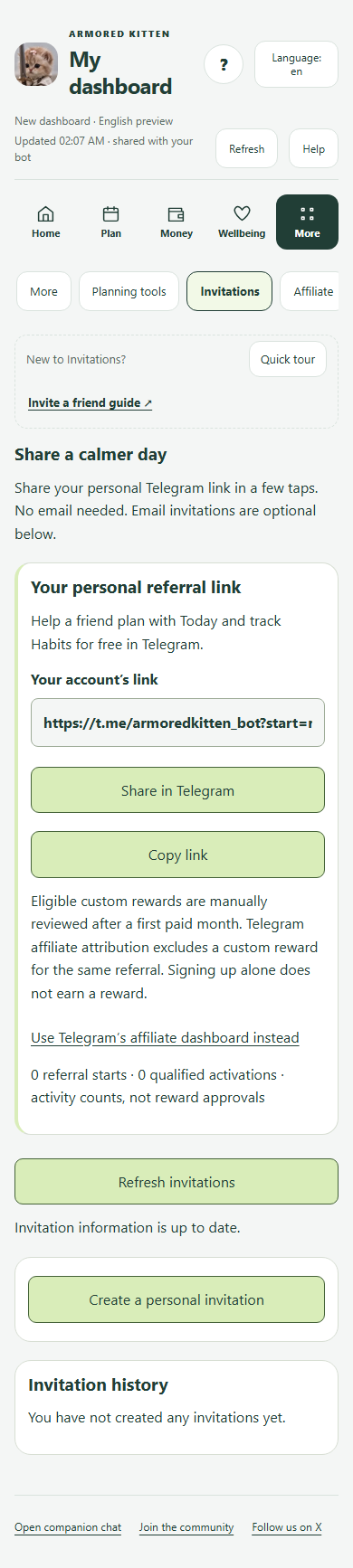
Invite a friend with your personal link in the sample dashboard

17 · account

Share your referral links and see who joined

Affiliate keeps your Armored Kitten referral link and your Telegram affiliate link in one place, with the people who started the bot through them.

  1. Open More → Affiliate. Under Armored Kitten referral, use Copy link or Share in Telegram to send your personal link. The panel explains the reward rules: signing up alone earns no reward, and the owner reviews every reward by hand.
  2. For Telegram’s own affiliate program, tap Open Telegram Earn Stars, choose Armored Kitten → Join → Copy link, then come back and use Paste & save Telegram link once. Telegram creates that link and pays its own commissions.
  3. A saved Telegram link waits for confirmation until Telegram’s first commission shows it is yours. Then People you referred lists everyone who started the bot through it, newest first, showing only the last 4 digits of each Telegram ID.
  4. The tiles count sign-ups, paying people and Stars recorded from Telegram. Telegram’s My Programs screen shows your official earnings. Turn the daily reminder on or off at the bottom.

These screens use a sample account with two sample sign-ups and one sample commission. They are not real people or real earnings, and they do not mean you will earn anything.

Share your referral links and see who joined in the sample dashboard

18 · account

Check your Plus access and renewal

Plus membership shows your access, the price, what Plus includes and your renewal. Telegram and your dashboard share the same account.

  1. Open More → Plus membership. The top card shows your current access and the next access check. Use Refresh membership after you pay or change your renewal.
  2. Plus costs 770 Telegram Stars every 30 days and renews until you cancel. The list shows which features are available now, and Compare Plus and Free opens the full comparison.
  3. To subscribe, read and accept the Plus terms, then pay in Telegram’s payment window. Plus unlocks once the payment is verified; opening an invoice is not a payment.
  4. Manage renewal shows when your paid access ends. Review canceling renewal stops future charges and keeps your access until the paid period ends. Your Plus gifts and Your payment history are listed below.

These screens use a sample paid account in Telegram test mode; no real payment was made. Your local cost to buy Stars can vary. This tour never opens on its own.

Check your Plus access and renewal in the sample dashboard

19 · account

Learn wallet and gifting basics in Wallet Quest

Wallet Quest is a short course of knowledge checks about wallets and thoughtful token gifts. No purchase or transfer is needed.

  1. Open More → Wallet Quest. Stages unlock in order, starting with 1. Meet your wallet. Each stage links to the chapters of the public gifting guide to read first.
  2. Choose one answer for every question, then tap Check and save my answers. Each answer shows an explanation. A wrong answer has no penalty, and you can try again whenever you like.
  3. A passed check is saved to your account and unlocks the next stage. Your bot and dashboard share the same progress; in the bot, use /walletquest.
  4. Eligible accounts can earn 5 Kitten Points for a first qualifying pass, within the shared limit of three learning awards a day. A pass does not guarantee points. Points are cosmetic, not money or ARMORED.

These screens use a sample account with one passed check. The quiz never moves money, and the sample pass recorded no points.

Learn wallet and gifting basics in Wallet Quest in the sample dashboard

Questions while you use the dashboard

Can I pause daily article messages after my access ends?

In the implementation preview, open More and choose Pause daily article messages. The Bot and dashboard share this saved choice, and pausing remains available after companion access ends. If a save cannot be confirmed, choose Check article message status before trying again. Turning messages on still requires eligible access and a saved time zone. These updated controls are not yet verified live.

When do bot changes appear?

Use Refresh after a saved change. The dashboard also checks while it is visible and idle. Refreshes pause around certain drafts so that typed work is not replaced.

What are the Today card and the week image in the bot?

/today sends one card with your checklist, next calendar item, habits due and today’s workout. Tapping a task or habit on the card updates that same message. If you pin it, it also follows changes you save in this dashboard. The English Calendar PNG candidate adds Today, Monday–Sunday Week and Month cards with authorized reminder and task titles, generic Gym and meal labels, and a text equivalent. Its buttons open Add reminder, Find 25 minutes, Plan next week and the selected past or current date in Diary. Schedule Today is on by default and can be turned off in its shared settings. These Calendar changes are a local preview pending integration and release.

Why are some tools unavailable?

Availability follows your existing account setup, access and feature consent. Free Fitness access is checked separately. A missing or unavailable feature is not the same as a zero balance or empty history.

What if my session ends?

Reopen the Mini App from the bot and connect again. Private snapshots and credentials are kept out of browser account storage and are cleared when the private dashboard disconnects.

Can I read Help while editing?

Yes. The in-dashboard Help window sits over your current screen. Search for a feature or ask how to use it. Help explains the existing tools without reading your private records or sending the question to AI. Closing Help clears its unsent question and returns you to the same form. Choosing a different tool still follows the unsaved-edit protection.

Can I continue a Help question in the bot?

Feature Help is in English. The bot and private dashboard share the selected help topic for up to 30 minutes. If Affiliate is not working, choose whether you mean getting your link, sharing it or rewards. You can answer that question in either interface. End help question clears it. Help never sends an invitation, changes a setting or checks your earnings.

Are these screenshots my account?

No. Every screenshot in this guide uses disposable sample records. Nothing shown here is a live account balance, appointment, workout or Mood record.

How do I finish a daily tutorial?

Use the private dashboard learning card, a tutorial message from the bot, or /tutorials today. Open the assigned lesson and choose Already read, or Don’t remind me again if you do not need it. Either way it is not sent again. Opening a page, scrolling or using a feature never marks a lesson read. The public tutorial cannot save account progress. Money, Mood and Weekly review are held out of the daily lessons while those dashboard screens are unfinished.

How do group cards work?

When group cards are enabled, open More, then My greetings, and choose the private group workspace. Organize one scrapbook, invite contributors and review notes before publishing. Guests can contribute without signup. After saving, an optional email code creates or connects their Studio account and enables chosen reply notices. Studio sign-in is still required for account management; Telegram linking never signs you in. The full illustrated walkthrough is at /greetings/start#group-cards. This is an English implementation preview; release and real-device acceptance remain separate.